
What Is Laser Hatch Spacing, and How Does It Affect Mark Quality

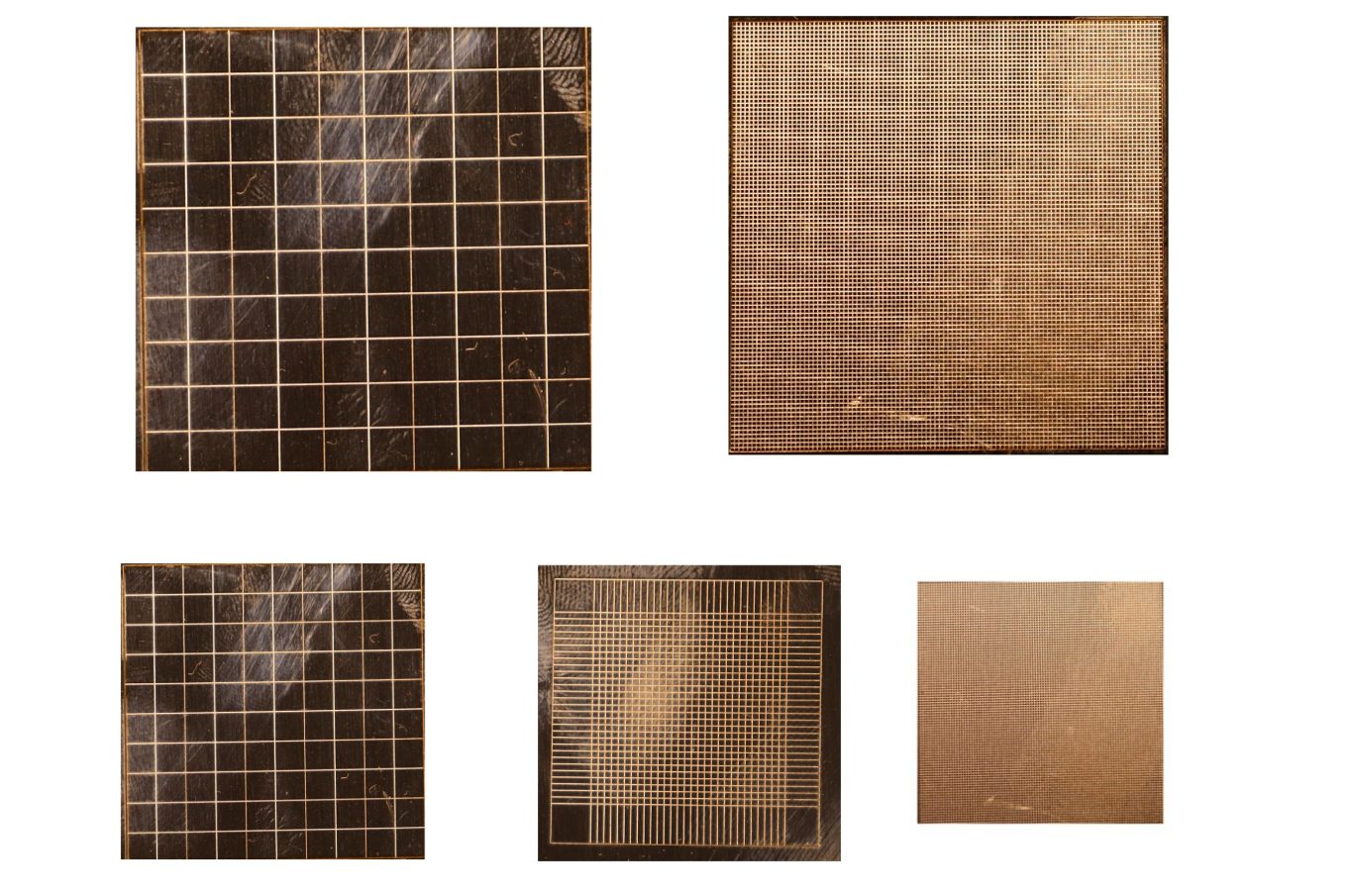
You design a logo, press start, and the laser fills it in. But when you look closely, something is off. The fill looks striped, patchy, or too dark in some areas. Or the edges are burnt while the middle is weak.
Often, the cause is a setting many beginners overlook: hatch spacing.
Hatch spacing does not get as much attention as power or speed, but it has a huge effect on how your marks look. It decides whether a filled area looks smooth and solid or rough and streaky. Once you understand it, many common marking problems become easy to fix.
In this guide, you will learn what laser hatch spacing is, how it works, and how it affects mark quality, in plain and simple language. We will also cover how to choose a good value, how to test it, and how to fix common problems.
What Is Hatch in Laser Marking?
A laser beam is a tiny spot of light. To fill an area, such as a solid logo or the inside of a letter, the laser cannot mark it in one go. Instead, it draws many thin, parallel lines side by side, a bit like coloring in a shape with a pen.
Those parallel lines are called hatch lines, and the process is called hatching or fill.
Here is a simple picture of what happens:
- The software divides the shape into many thin lines.
- The laser marks the first line.
- It moves over slightly and marks the next line.
- It repeats this until the whole area is filled.
Hatching is used for solid logos, filled text, QR code squares, engraved areas, and darker annealed marks.
What Is Hatch Spacing?
Hatch spacing is the distance between one hatch line and the next. You will also see it called line spacing, line interval, or fill spacing in different marking programs.
It is usually measured in millimeters, and the numbers are tiny, often a few hundredths of a millimeter.
Think of it like this:
- Small spacing means the lines are close together, so they overlap a lot.
- Large spacing means the lines are far apart, so they overlap little or not at all.
The laser spot has a real width, so what matters is how that width compares to the spacing.
The Key Idea: Spot Size vs Hatch Spacing
The most important thing to understand is how hatch spacing relates to spot size, which is the width of the focused laser beam on your material.
- If the spacing is larger than the spot size, there are gaps between the lines. The fill looks striped and the mark is weak.
- If the spacing is about the same as, or slightly smaller than, the spot size, the lines touch or overlap a little. The fill looks solid and smooth.
- If the spacing is much smaller than the spot size, the lines overlap heavily. The surface gets a lot of extra energy and heat, which can cause burning, deeper marks, and rough edges.
Spot size depends mostly on your lens and your focus. A short focal length lens such as an F-163 or F-210 creates a smaller spot, so it needs smaller hatch spacing for a solid fill. A longer lens makes a larger spot, so a bigger spacing can still fill solidly. Our guide on how to choose the right fiber laser marking lens explains how lens choice affects spot size.
This is why you cannot copy hatch spacing from another machine and expect the same result. It must match your spot size.
How Hatch Spacing Affects Mark Quality
Here is what happens as you move from too wide to too tight.
When Hatch Spacing Is Too Wide
- Visible stripes or lines in the filled area
- Weak, light, or patchy marks
- Gaps where the laser did not reach
- Poor contrast, especially on dark or annealed marks
- Unreliable QR codes, since the squares are not solid
Wide spacing is fast, but the result often looks unfinished.
When Hatch Spacing Is Just Right
- Smooth, even fill with no visible lines
- Consistent color or depth across the whole area
- Clean edges and sharp details
- Good contrast and repeatable results
- Reasonable marking time
This is the sweet spot you are looking for.
When Hatch Spacing Is Too Tight
- Too much heat builds up in the material
- Burnt, discolored, or melted areas
- Marks that are deeper than intended
- Rough or spreading edges, which hurts small text
- Longer marking time, since there are many more lines
- Possible damage to thin or heat-sensitive pieces
Tight spacing is slow and can ruin delicate work, even when power and speed look correct.
Hatch Spacing and Energy: Why It Matters
The energy a surface receives depends on several settings working together:
- Power: how strong the beam is
- Speed: how fast the beam moves along each line
- Frequency: how often the laser pulses
- Hatch spacing: how close the lines are
- Number of passes: how many times the area is marked
Here is the connection people often miss. Speed and frequency control how the marks overlap along a line, while hatch spacing controls how the lines overlap side to side.
So if you halve the hatch spacing, you roughly double the number of lines in the area, which is like adding more energy to the surface. That is why changing hatch spacing can make a mark darker, deeper, or burnt, even if you do not touch the power or speed.
Our guide on how to choose the right marking speed and power for fiber lasers explains how these other settings work together.
Other Hatch Settings You Will See
Most marking programs offer a few settings beside spacing. Knowing them helps you get better results.
Hatch Angle
This is the direction the lines run, such as horizontal, vertical, or at an angle. It affects how the fill looks and can change the way light reflects off the surface.
- Changing the angle slightly can hide faint lines.
- On shiny metals, different angles can look slightly different.
Cross-Hatching and Angle Rotation
When you mark more than one pass, the software can rotate the angle each time. For example, the first pass runs at 0 degrees and the next at 90 degrees. This evens out the fill and reduces visible lines, and it helps create a smooth, uniform result.
Bidirectional vs One-Direction Fill
- Bidirectional fill marks lines in both directions, going back and forth. It is faster.
- One-direction fill marks every line in the same direction. It can be more consistent, but takes longer.
On some machines, bidirectional fill can leave slight differences between alternate lines, so test it on your material.
Edge Offset and Outline
Many programs let you add an outline around the fill or leave a small gap between the fill and the edge. This can make the edges look cleaner and stop heat from spilling over the border.
Hatch Loops (Contour Passes)
This adds one or more outline passes around the filled area. It can sharpen the edge of logos and text.
How to Choose a Good Hatch Spacing
There is no single perfect number, because it depends on your spot size, material, and goal. But you can follow a simple process.
Step 1: Know Your Spot Size
Check your lens and focus. A smaller spot needs a smaller hatch spacing.
Step 2: Start with a Reasonable Value
A common starting point is a spacing close to, or slightly smaller than, the spot size. Many workshops start in the range of a few hundredths of a millimeter, such as 0.02 to 0.05 mm, and then adjust. Treat any number as a starting point and test it on your own machine.
Step 3: Run a Hatch Test
Mark several small squares on a scrap piece of the same material and finish. Keep power, speed, and frequency the same, and change only the hatch spacing from one square to the next.
Step 4: Inspect Under Magnification
Use a loupe or magnifier. Look for:
- Visible stripes or gaps
- Uneven color or depth
- Burnt or discolored areas
- Rough or spreading edges
Step 5: Choose the Best Balance
Pick the largest spacing that still gives a smooth, solid fill. This gives you good quality with the least heat and the shortest time.
Step 6: Fine-Tune and Save
Adjust angle, power, or speed if needed, changing one setting at a time. Save your best settings with the material, lens, and notes.
Hatch Spacing for Different Jobs
Different marks call for different choices.
Black Marking (Annealing) on Stainless Steel
This technique heats the surface to create a dark oxide layer, so an even, gentle heat is the goal.
- Use tight, even spacing for a smooth, solid dark fill.
- Avoid spacing that is so tight that it removes material or causes uneven color.
- Test carefully, since small changes can shift the color.
Our guide on black marking vs. surface engraving on stainless steel explains this in more detail.
Surface Engraving
Engraving removes material, so spacing affects depth and surface texture.
- Tighter spacing gives a smoother floor and deeper results.
- Wider spacing can leave a ridged texture.
- Multiple passes with rotated angles help create an even depth.
Removing Coatings (Ablation)
The goal is to remove only the surface layer.
- Use spacing that clears the coating evenly without digging into the metal.
- Too tight can burn through the coating and mark the metal underneath.
Tiny Text and Fine Details
Small text is very sensitive to heat.
- Use a small, tight spacing that gives a solid fill with the lowest possible energy.
- Avoid over-tight spacing, which spreads heat and blurs letters.
- Consider single-line fonts to avoid hatching altogether.
Our guide on how to mark tiny text without losing readability covers this in detail.
QR Codes and Barcodes
Scanners need solid, even squares.
- Use tight, consistent spacing so modules fill completely.
- Avoid stripes, which reduce contrast.
- Avoid over-heating, which makes small squares merge.
See our guides on how to create permanent QR codes with a fiber laser marker and how to improve QR code readability on small metal components.
Jewelry and Plated Items
Plating is thin and easy to burn through.
- Use hatch spacing that gives a clean fill with minimal energy.
- Avoid tight spacing that stacks heat on thin gold layers.
- Test on a matching sample.
Our guide on laser marking gold-plated objects explains how to protect thin plating.
Troubleshooting Hatch Spacing Problems
The Fill Shows Stripes or Lines
- Reduce the hatch spacing
- Check the focus, since a blurry spot makes gaps worse
- Rotate the hatch angle or use cross-hatching
- Check that speed and frequency are well matched
The Mark Looks Patchy or Uneven
- Check that the piece is level
- Clean the surface and the lens
- Try a different hatch angle
- Test one-direction instead of bidirectional fill
The Mark Looks Burnt or Too Deep
- Increase the hatch spacing slightly
- Reduce power or increase speed
- Reduce the number of passes
- Let the piece cool between marks
The Edges Look Rough or Blurry
- Increase the hatch spacing slightly to reduce heat
- Add an outline pass or small edge offset
- Check the focus
- Reduce power
The Marking Time Is Too Long
- Increase the hatch spacing slightly, as long as the fill stays solid
- Use bidirectional fill, if it gives good results
- Increase speed and adjust power to match
- Reduce unnecessary passes
Moiré or Wavy Patterns Appear
- Change the hatch angle
- Slightly adjust hatch spacing
- Use rotated passes
Common Mistakes to Avoid
- Copying hatch spacing from another machine without checking spot size
- Making the spacing much smaller than the spot size “just to be safe”
- Changing hatch spacing without testing its effect on heat
- Ignoring focus, which changes spot size
- Using the same spacing for every material
- Changing several settings at once
- Skipping the test squares
- Not inspecting under magnification
- Forgetting to save good settings
Fiber lasers can seriously injure your eyes, even from reflections.
- Wear laser safety glasses rated for 1064 nm.
- Use fume extraction when marking metals and coatings.
- Keep reflective items out of the beam path.
- Keep the machine away from children and untrained users.
- Follow your machine manufacturer’s safety instructions.
Laser Safety
Fiber lasers can seriously injure your eyes, even from reflections.
- Wear laser safety glasses rated for 1064 nm.
- Use fume extraction when marking metals and coatings.
- Keep reflective items out of the beam path.
- Keep the machine away from children and untrained users.
- Follow your machine manufacturer’s safety instructions.
Quick Hatch Spacing
Before testing
- Lens and focus set correctly
- Surface clean and flat
- Piece held firmly
- Spot size understood
During testing
- Same power, speed, and frequency for each test square
- Hatch spacing changed in small steps
- Results inspected under magnification
- Angle and fill direction tested if needed
After testing
- Largest spacing that gives a smooth, solid fill chosen
- Settings saved with material, lens, and notes
- Retest after changing lens, focus, or material
FAQ
What is hatch spacing in laser marking?
It is the distance between the parallel lines the laser uses to fill an area. It is also called line spacing or line interval.
What is a good hatch spacing for a fiber laser?
It depends on your spot size, material, and goal. A common starting point is close to, or slightly smaller than, the spot size, often a few hundredths of a millimeter. Always test on your own machine.
What happens if hatch spacing is too small?
The lines overlap too much, so the surface gets extra heat. This can cause burning, deeper marks, rough edges, and slower marking.
What happens if hatch spacing is too large?
Gaps appear between the lines, so the fill looks striped, patchy, or weak.
Does hatch spacing change the color of annealed marks?
It can. Hatch spacing changes how much heat the surface receives, which affects the color and darkness of annealed marks.
Is hatch spacing the same as line spacing?
Yes. Different programs use different names, such as hatch spacing, line spacing, line interval, or fill spacing.
Does the lens affect hatch spacing?
Yes. The lens changes the spot size, and the best hatch spacing depends on spot size.
Should I rotate the hatch angle?
It often helps. Rotating the angle between passes reduces visible lines and creates a more even fill.
Can hatch spacing fix a faint mark?
Sometimes. A slightly tighter spacing adds energy and can darken a mark, but also check focus, power, speed, and surface condition first.
Conclusion
Hatch spacing is a small setting with a big effect.
It controls how closely the laser’s fill lines sit together, so it decides whether a filled mark looks smooth and solid, striped and weak, or burnt and rough. The right value depends on your spot size, which depends on your lens and focus. Start with a reasonable value, run a simple test with small steps, inspect under magnification, and choose the largest spacing that still gives a clean, solid fill.
If you are setting up or upgrading your marking workshop, explore our fiber laser marking machines, field lenses, rotary axes, and fixture tables at MCast 3D. If you are not sure which setup suits your marking work, contact our team and we will help you choose.