
How to Improve QR Code Readability on Small Metal Components

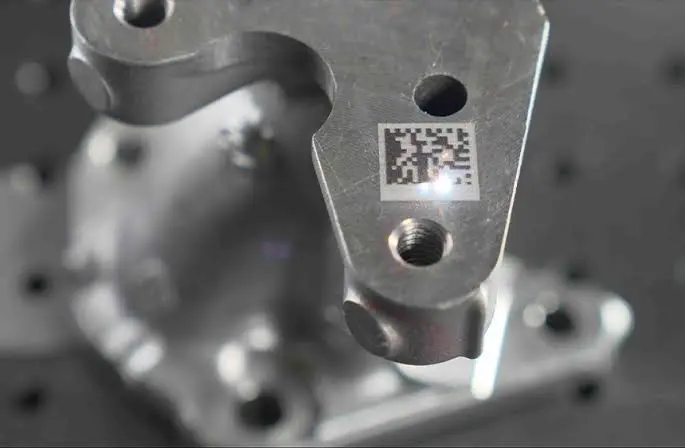
A QR code on a large label is easy. A QR code on a tiny metal part is a different story.
Small metal components, like screws, brackets, tool tips, jewelry tags, medical parts, and electronic housings, leave very little room to work with. The surface may be shiny, curved, or rough. The code may need to survive polishing, cleaning, or heavy handling. And whoever scans it may be using nothing more than a phone camera.
When a code will not scan, the problem is rarely just “bad marking.” It is usually a combination of small mistakes in design, size, contrast, surface, and scanning conditions.
In this guide, you will learn how to improve QR code readability on small metal components, step by step, in plain language. Whether you use a fiber laser marker already or are planning to buy one, these tips will help you get clean, reliable codes.
Why Small Metal Parts Are Hard to Mark
Before fixing problems, it helps to understand why they happen.
- Limited space. A small part forces you to shrink the code, and smaller codes are less forgiving.
- Reflective surfaces. Shiny metal bounces light around, which can confuse a camera.
- Curved or uneven surfaces. The code can distort or go out of focus.
- Low natural contrast. Metal-on-metal marks do not have the black-on-white look of a printed code.
- Heat sensitivity. Small parts heat up quickly, and excess heat spreads and blurs fine details.
- Later processing. Polishing, plating, coating, or cleaning can fade or fill in the code.
The good news is that each of these has a practical fix.
First, Understand How a QR Code Is Built
A QR code is a grid of tiny squares called modules. Dark and light modules form a pattern that a camera reads. A few parts of the code matter a lot for readability.
- Modules: The individual squares. They must be big enough to mark clearly and to be seen by a camera.
- Finder patterns: The three large squares in the corners. They help the scanner find and orient the code.
- Quiet zone: The empty border around the code. Scanners need it to see where the code starts and stops.
- Error correction: Extra data built into the code so it can still be read if parts are damaged or unclear.
- Version: The size of the grid. More data means a larger, denser grid with smaller modules.
Every tip below connects back to one of these five points.
Step 1: Simplify the Data
The easiest way to improve readability is to put less data in the code.
- Use a short link or short ID instead of a long web address.
- Avoid extra parameters, tracking codes, or long text.
- Use a short link on your own domain so you can change the final destination later without re-marking the part.
Less data creates a smaller grid with bigger modules for the same overall size. Bigger modules are easier to mark cleanly and easier to scan. This one change often solves many problems before you touch any laser settings.
Step 2: Choose the Right Code Type
QR codes are not the only option for small parts.
- Standard QR code: Great for phones and general use.
- Micro QR code: A smaller version for very short data, with a single finder pattern.
- Data Matrix code: Very popular for direct marking on small industrial parts, because it can be read at very small sizes with industrial scanners.
If your code will be scanned by customers using phones, a standard QR code is usually the best choice. If it will be scanned in a factory or workshop with industrial readers, a Data Matrix code may be easier to make small and reliable.
Step 3: Pick a Sensible Error Correction Level
QR codes offer four levels of error correction: L, M, Q, and H. Higher levels can survive more damage, but they add more modules and make the grid denser.
- Low or medium: Good for clean, protected parts and when you need larger modules.
- Quartile or high: Good for parts that will be scratched, worn, or handled a lot, as long as you have enough room.
There is a trade-off. Higher error correction helps with wear but makes modules smaller on a tiny part. Choose the lowest level that still protects the code in your real-world conditions, and test.
Step 4: Make the Modules Big Enough
Module size is the number one cause of unreadable codes on small parts.
The laser marks each module with a spot of light that has a real size, and heat spreads slightly beyond the spot. If modules are too small, neighboring squares blur together and the camera cannot tell them apart.
Here is how to improve module size:
- Shorten the data, so the grid has fewer modules.
- Increase the overall code size if the part allows.
- Use a short focal length lens, such as an F-163 or F-210, to create a smaller laser spot and cleaner small modules. Our guide on how to choose the right fiber laser marking lens explains how lens choice affects fine detail.
- Test several sizes on scrap material and choose the smallest one that scans quickly every time, then add a safety margin.
Step 5: Protect the Quiet Zone
Many failures come from a code placed too close to an edge, a hole, a stamp, or another marking.
- Leave a clear border of at least four modules on all sides.
- Keep text, logos, lines, and scratches out of this area.
- Do not place the code right at the corner of a part, where edges can cause reflections.
If the part is too small for both the code and the border, shorten the data or consider a different code type.
Step 6: Get the Contrast Right
A scanner reads the difference between light and dark modules. On metal, creating that contrast takes some care.
Pick the Right Marking Method
- Annealing (black marking) on stainless steel: Creates a dark, smooth mark with high contrast, which is why it is popular for tools and medical parts. Our guide on black marking vs. surface engraving on stainless steel explains the difference.
- Engraving: Creates a recessed mark. Contrast depends on lighting and shadow, so test it carefully.
- Ablation on anodized or coated aluminum: Removes the coating to reveal the metal below, giving strong contrast.
- Etching: A shallow mark that gives smooth, fine detail.
Contrast Tips
- Test on the exact material and finish you will use.
- Choose positive or negative marking based on the surface. Sometimes marking the light squares gives better results than marking the dark ones.
- Make the marked modules solid and even, not patchy or striped.
- Avoid very mirror-like finishes where possible, since glare can wash out the code.
For a broader look at how these methods differ, read what is the difference between engraving, etching, and printing.
Step 7: Prepare and Hold the Part
A clean, steady part gives a clean, steady code.
- Clean the surface with soap, water, and alcohol, and dry it completely. Oil and fingerprints cause uneven marks.
- Choose the flattest area of the part.
- Hold the part firmly. Even tiny movement blurs small modules. A fixture table for fiber laser marking machines keeps small parts steady and in the same position every time, which is also great for repeat jobs.
- Keep the part level so the whole code stays in focus.
If you are marking jewelry, our guide on how to prepare jewelry for fiber laser marking shares more preparation tips.
Step 8: Handle Curved Surfaces Carefully
Curved surfaces are one of the biggest challenges for small components.
- Use the flattest part of the curve whenever possible.
- Keep the code small relative to the curve, so less of it wraps around.
- Use a rotary axis for cylinders, which turns the part so the surface stays at the right distance from the lens. We offer a rotary axis for fiber laser marking machines for this kind of work.
- Check that the code is not mirrored when using rotary setups.
- Adjust the size, since curved surfaces can stretch or compress the code.
- Test scanning from the angle your customers will actually use.
If you can choose, put the code on a flat face. It will always scan better than one on a tight curve.
Step 9: Set the Focus Exactly
Poor focus makes the laser spot larger and weaker, so small modules blur.
- Set the part at the lens’s focal distance.
- Use the red guide light, if your machine has one, to check position.
- Re-check focus when the part height changes.
- Make sure the marking area is level.
Short focal length lenses give finer detail, but they are less forgiving about focus. Take your time with this step.
Step 10: Use Gentle, Well-Balanced Laser Settings
For tiny codes, less energy usually gives better results. Too much heat spreads and fills the gaps between modules.
- Lower power reduces heat spread.
- Moderate to fast speed limits heat build-up on small parts.
- Frequency should be tested on your material for the cleanest mark.
- Tight, even hatch spacing makes modules solid, not striped.
- Fewer passes keep edges crisp.
- Allow cooling between marks on very small or thin parts.
Our guide on how to choose the right marking speed and power for fiber lasers explains these settings and shows how to build a test grid. And if you want to explore options for your workshop, take a look at our fiber laser marking machines and field lenses.
Step 11: Think About Lighting and Scanning
A perfectly marked code can still fail to scan if the lighting is wrong. This is especially true on shiny metal.
- Avoid harsh direct light, which creates glare on reflective surfaces.
- Use soft, even lighting when possible.
- Try different angles. Some codes scan better when light hits them from the side, and others from above.
- Keep the camera steady and at the right distance. Too close or too far can cause focus problems.
- Check on more than one phone and scanner. Different cameras behave differently.
If customers will scan the code, test it in normal indoor lighting, near a window, and under bright lights. If you are using an industrial reader, ask whether it uses special lighting. Many do.
Step 12: Test, Verify, and Save Your Settings
Testing is where good codes become reliable codes.
- Mark test codes on scrap of the same material and finish.
- Scan them on several phones and any scanners you plan to use.
- Try different distances, angles, and lighting.
- Look at the code under magnification to check for filled-in modules, uneven squares, and weak spots.
- Change one setting at a time, then test again.
- Save your best settings along with the material, lens, and code size.
- Consider quality grading if your industry requires it. Some industries use verification tools that grade marked codes against recognized standards for direct part marking.
A code that scans easily on the first try is much more likely to keep working in the real world.
Step 13: Plan for What Happens After Marking
Many codes work perfectly when marked and fail later because of what happens next.
- Polishing can wear down or remove shallow marks.
- Plating or coating can fill in small modules or change contrast.
- Heat treatment or passivation can change how a mark looks.
- Cleaning chemicals and abrasion can fade some marks over time.
- Rough handling can scratch the surface and damage the quiet zone.
If your part goes through more processing, test the code after those steps, not just after marking. Sometimes the answer is to change the order of work or choose a deeper or different marking method.
Laser Safety
Fiber lasers can seriously injure your eyes, even from reflections off shiny metal.
- Wear laser safety glasses rated for 1064 nm.
- Use fume extraction when marking metals and coated surfaces.
- Keep reflective items away from the beam path.
- Keep the machine away from children and untrained users.
- Follow your machine manufacturer’s safety instructions.
Quick Troubleshooting Guide
The Code Will Not Scan at All
- Check the quiet zone
- Make sure the code is not mirrored
- Increase the size or shorten the data
- Check contrast and focus
The Code Scans Slowly or Only Sometimes
- Increase module size
- Improve contrast
- Reduce glare with softer lighting
- Check for uneven or patchy marks
Modules Look Filled In or Blobby
- Reduce power
- Increase speed
- Check focus
- Use a shorter focal length lens
The Code Scans on the Screen but Not on the Part
- Check module size and contrast
- Test on the actual material
- Look at the surface finish and lighting
The Code Scans Well at First, Then Fades
- Check what happens after marking, such as polishing or plating
- Increase mark depth or change method
- Protect the code area
Part of the Code Is Blurry
- Check that the part is level
- Check the focus across the full code
- Hold the part more firmly
Common Mistakes to Avoid
- Using long web addresses in tiny codes
- Forgetting the quiet zone
- Choosing a very high error correction level on a very small part
- Using too much power
- Marking on a curved area when a flat one is available
- Skipping the test mark and scan
- Testing only on a screen, not on the real part
- Ignoring polishing, plating, or coating steps that come later
- Scanning only on one phone or in one kind of light
Quick Readability Checklist
Design
- Short link or short ID
- Suitable code type: QR, Micro QR, or Data Matrix
- Lowest error correction level that is still safe
- Quiet zone included
- Not mirrored
Setup
- Part clean and dry
- Flat area chosen, or rotary axis used for cylinders
- Part held firmly and level
- Focus set exactly
- Short focal length lens for small codes
Marking and testing
- Gentle settings with tight, even fill
- Test on the same material and finish
- Scanned on several phones and in different light
- Tested again after any later processing
- Settings saved
FAQ
Why will my QR code not scan on a small metal part?
The most common causes are modules that are too small, low contrast, a missing quiet zone, poor focus, glare from shiny metal, or a mirrored code. Check each of these in turn.
How can I make a QR code smaller without losing readability?
Shorten the data, use a short link, choose a lower error correction level, and use a lens with a smaller laser spot. Then test sizes on scrap to find the smallest code that scans reliably.
Is a Data Matrix code better than a QR code for small parts?
Often, in industrial settings. Data Matrix codes can be read at very small sizes with industrial scanners. For customers scanning with phones, a QR code is usually the better choice.
Does shiny metal make QR codes harder to scan?
Yes. Glare and reflections can wash out contrast. Use soft lighting, choose a marking method that creates strong contrast, and consider a slightly matte surface where possible.
What marking method gives the best contrast on stainless steel?
Annealing, or black marking, is a popular choice because it produces a smooth, dark, high-contrast mark. Always test it on the exact steel and finish you use.
Can I mark QR codes on curved metal parts?
Yes, but it is harder. Use the flattest area, keep the code small, and use a rotary axis for cylinders. Always test scanning from the angle the customer will use.
Will polishing or plating affect my QR code?
It can. Polishing may wear it down, and plating can fill small modules. Test the code after these steps, and adjust your process if needed.
How do I know my QR code is good enough?
Scan it on several phones and scanners, in different lighting and from different angles. If your industry requires it, use a code verifier to grade the mark.
Conclusion
Readable QR codes on small metal components are not about luck. They come from a series of small, smart choices.
Keep the data short, choose the right code type, and make sure the modules are big enough to mark and scan. Protect the quiet zone, get strong contrast, hold the part firmly, and set the focus carefully. Use gentle laser settings, test in real lighting, and check the code again after any polishing or plating. Do this consistently and your codes will scan quickly and keep working for as long as the part does.
If you are building or upgrading your marking setup, explore our fiber laser marking machines, lenses, rotary axes, and fixture tables at MCast 3D. If you are not sure which setup suits your small metal parts, contact our team and we will help you choose. For the basics of the process, you can also read our guide on how to create permanent QR codes with a fiber laser marker.