
How to Create Permanent QR Codes With a Fiber Laser Marker

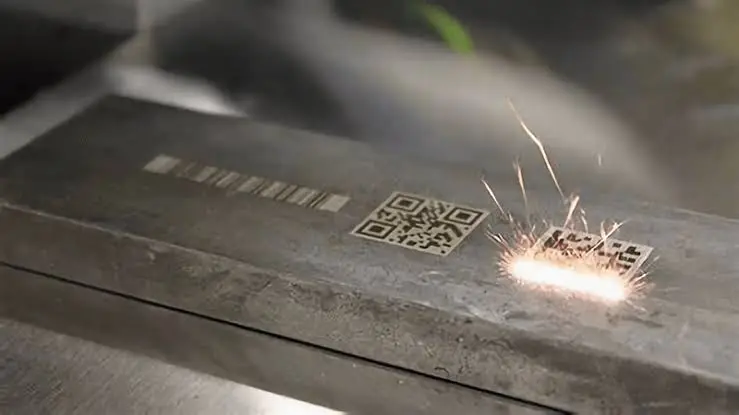
Stickers peel. Printed labels fade. Ink rubs off.
If you need a QR code that lasts as long as the product itself, a fiber laser marker is one of the best tools you can use. It can mark a tiny, sharp QR code directly onto metal, tools, tags, jewelry, and many other materials, and that mark stays readable for years.
But a QR code that looks good is not always a QR code that scans well. Size, contrast, settings, and focus all play a part.
In this guide, you will learn how to create permanent QR codes with a fiber laser marker, from designing the code to testing it, in simple steps that anyone can follow.
Why Use a Fiber Laser for QR Codes?
Laser-marked QR codes are popular in factories, workshops, and jewelry businesses for good reasons:
- They are permanent. The code is part of the material, not a layer on top, so it will not peel, smudge, or wash off.
- They are tiny and sharp. A fiber laser can mark very small details, which is ideal for small parts and tags.
- They resist wear. Heat, moisture, oil, and handling usually do not remove a properly marked code.
- They are fast. A small QR code can be marked in just a few seconds.
- They are cheap to run. There are no inks, labels, or consumables to replace.
- They support traceability. A QR code can link to a product page, a serial number, a warranty page, or a batch record.
This is why you see laser-marked codes on tools, electronic parts, medical items, name plates, and an increasing number of jewelry tags and certificates.
What You Can Link a QR Code To?
Before you mark anything, decide what the code will do. Common uses include:
- A product page or catalog
- A warranty or registration page
- A serial number or batch record
- A care guide or user manual
- A certificate of authenticity, for jewelry
- A contact or social media page
This decision matters, because once the code is marked, you cannot change it.
Static vs Dynamic QR Codes
There are two kinds of QR codes, and the choice is important for permanent marking.
- Static QR codes hold the information directly in the pattern, for example a web address or text. They never expire, but you cannot change the destination after marking.
- Dynamic QR codes point to a short link that redirects to another page. You can change the final destination later, but you rely on the redirect service staying online.
For permanent marking, a smart approach is to use a short link on your own domain, such as a page on your website that you control. That way you can update where it points, without depending on a third-party service that might shut down or change its pricing.
Step 1: Create a Clean, Simple QR Code
The simpler your code, the easier it is to mark small and scan reliably.
- Keep the data short. A short web address creates a simpler pattern with larger squares, which is easier to mark and scan.
- Use a short link rather than a long address with many parameters.
- Choose a suitable error correction level. QR codes have four levels, L, M, Q, and H. Higher levels can recover from damage or dirt better, but they make the code denser. Medium is a good starting point for most work, while higher levels suit rough surfaces or items that will see heavy wear.
- Avoid unnecessary data. The more you add, the smaller each square becomes.
You can create the code using your marking software’s built-in barcode tool, or using a free QR code generator and importing it as an image or vector file. Many laser marking programs, such as EZCAD, have a built-in barcode and QR code function, which keeps the code sharp.
Always test the code on your phone on-screen before you mark it. A code that does not work on a screen will not work on metal either.
Step 2: Choose the Right Size
Size is where most mistakes happen. A QR code is made of tiny squares called modules. Each module must be big enough for the laser to mark clearly and for a camera to see.
Here are the key points:
- Bigger modules are easier to mark and scan. Very small modules can blur together.
- Dense codes need more space. A long address creates many small modules, so the overall code must be larger.
- Do not shrink the code too far. There is a limit to how small a code can be and still scan on a normal phone.
- Think about who will scan it. A phone camera needs more size than an industrial scanner.
A practical way to find your limit is to mark the same code at several sizes on scrap material, then try scanning each one. Choose the smallest size that scans quickly and reliably, then add a little extra size as a safety margin.
A short focal length lens, such as the F-163 or F-210, gives a smaller laser spot and is better for tiny, detailed codes. Our guide on how to choose the right fiber laser marking lens explains how the lens affects detail.
Step 3: Leave a Quiet Zone
Size is where most mistakes happen. A QR code is made of tiny squares called modules. Each module must be big enough for the laser to mark clearly and for a camera to see.
Here are the key points:
- Bigger modules are easier to mark and scan. Very small modules can blur together.
- Dense codes need more space. A long address creates many small modules, so the overall code must be larger.
- Do not shrink the code too far. There is a limit to how small a code can be and still scan on a normal phone.
- Think about who will scan it. A phone camera needs more size than an industrial scanner.
A practical way to find your limit is to mark the same code at several sizes on scrap material, then try scanning each one. Choose the smallest size that scans quickly and reliably, then add a little extra size as a safety margin.
A short focal length lens, such as the F-163 or F-210, gives a smaller laser spot and is better for tiny, detailed codes. Our guide on how to choose the right fiber laser marking lens explains how the lens affects detail.
Step 3: Leave a Quiet Zone
Every QR code needs an empty border around it, called the quiet zone. This clear space helps scanners find the edges of the code.
- Leave a clear border of at least four modules on every side.
- Do not place text, lines, or logos inside this area.
- Keep the area free of scratches or other marks.
Many failed codes are simply too close to the edge of the piece, or to another design element. Plan your layout so the code has room to breathe.
Step 4: Get the Contrast Right
Scanners read the difference between light and dark squares. Without enough contrast, even a perfectly marked code will not scan.
How contrast appears depends on the material and the marking method.
Common Marking Methods
- Annealing: On stainless steel and some other metals, the laser heats the surface to create a dark mark without removing material. This gives a smooth, high-contrast code and is popular for tools and medical items. It usually works best with settings made for it.
- Engraving: The laser removes a small amount of material. The mark is deeper, and contrast depends on light and shadow.
- Ablation: On coated or anodized surfaces, the laser removes the surface layer to show the metal beneath, giving strong contrast.
- Foaming or color change on plastics: Some plastics change color under the laser, creating light or dark marks.
Tips for Better Contrast
- Test different settings on a scrap piece of the same material.
- Use a surface that is not too glossy where possible, since mirror-like finishes can cause reflections that confuse scanners.
- Choose positive or negative marking depending on the surface. On a dark surface, you may want the light squares marked. On a light metal, you usually mark the dark squares.
- Make sure the marked squares are solid and even, not patchy.
If you are marking jewelry, our guide on how to prepare jewelry for fiber laser marking covers cleaning and surface preparation that also helps contrast.
Step 5: Set Up Your Material and Surface
Good preparation makes a big difference.
- Clean the surface so oil, dust, and fingerprints do not affect the mark.
- Choose a flat area. Flat surfaces keep the whole code at the same focus. A QR code on a curved surface can distort and become harder to scan.
- Hold the piece firmly. Any movement will blur the code. A fixture table keeps items in the same place each time, which is great for repeated jobs.
- Use a rotary axis for round items only when needed. If you must mark a cylinder, keep the code small and test carefully. A rotary axis can help, but curved surfaces are always more difficult.
Step 6: Set the Focus Correctly
Poor focus is a leading cause of blurry QR codes.
- Set the height so the surface sits at the lens’s focal distance.
- Use the red guide light, if available, to confirm positioning.
- Re-check the focus whenever the piece thickness changes.
- Make sure the part is level so every corner of the code is equally sharp.
Short-focus lenses create finer codes but give less room for error, so accuracy is more important with them.
Step 7: Choose Your Marking Settings
Exact settings depend on your machine, laser power, lens, and material, so you will always need to test. However, here is what each setting does.
- Power: More power makes a deeper or darker mark, but too much can cause burning, spreading, or melted edges that blur small squares.
- Speed: Slower speeds add more energy and a darker mark. Faster speeds give lighter marks and cleaner small details.
- Frequency: This affects how the laser pulses and changes the mark’s color and texture, especially for annealing.
- Fill and hatch spacing: QR code squares are filled with lines. Tight, even line spacing makes the squares solid. If lines are too far apart, the squares look striped and scan poorly.
- Number of passes: Extra passes deepen the mark, but they can also make edges messy on very small codes.
Start with the recommended settings for your material and adjust a little at a time. For very small codes, lighter, cleaner marks usually scan better than deep, heavy ones.
Step 8: Run a Test Mark and Scan It
Never mark a final piece without testing first.
- Mark a test code on a sample of the same material and finish.
- Scan it with several phones if you can, in different lighting.
- Try different angles and distances. A good code should scan easily and quickly.
- Check for weak spots such as missing squares, blurred edges, or low contrast.
- Adjust one setting at a time and test again.
- Save your best settings for each material.
A useful rule is this: if a code is hard to scan on the first try, it will be even harder for your customers.
Step 9: Mark the Final Piece
When the test works:
- Double-check the design size, position, and orientation.
- Make sure the code is not mirrored. This is a common mistake when using rotary setups or flipped artwork.
- Check that the fixture is secure.
- Confirm that fume extraction is running.
- Start the mark and watch for anything unusual.
After marking, clean any dust or residue from the surface and scan the code again to confirm it reads properly.
Special Tips for Jewelry QR Codes
QR codes are becoming more popular in jewelry for certificates, authenticity, and branding.
- Mark the code on a flat tag, pendant back, or clasp plate rather than on a ring band.
- Use short links to keep the code simple.
- Keep the code away from stones, solder joints, and thin areas.
- Test on a sample of the same metal first, since gold and silver reflect laser light and may need careful settings.
- Consider how polishing or plating after marking could change the code.
For a full list of marking tools for jewelers, see our fiber laser marking machines and field lens options.
Laser Safety
A fiber laser can seriously injure your eyes, even from reflected light.
- Wear laser safety glasses rated for 1064 nm.
- Keep reflective objects away from the beam path.
- Use fume extraction when marking metals, coatings, or plastics.
- Keep the machine away from children and untrained users.
- Follow your machine manufacturer’s safety instructions.
Quick Checklist for Permanent QR Codes
Design
- Short link or short data
- Code tested on-screen
- Suitable error correction level
- Quiet zone included
- Not mirrored
Setup
- Surface clean and flat
- Piece held firmly
- Focus set correctly
- Suitable lens for the size
Marking
- Test mark done on the same material
- Contrast checked
- Settings saved
- Final code scanned after marking
Common Mistakes to Avoid
- Marking a code that is too small for the module size
- Using a long web address that creates a dense code
- Forgetting the quiet zone
- Marking on a curved or uneven surface without testing
- Using too much power and blurring the squares
- Leaving wide hatch spacing so squares look striped
- Skipping the test mark and scan
- Marking a mirrored code
- Pointing the code to a link that may disappear
FAQ
Can a fiber laser mark QR codes on metal
Yes. Fiber lasers are widely used to mark QR codes and other barcodes directly onto stainless steel, aluminum, brass, and many other metals.
How small can a laser-marked QR code be?
It depends on your lens, settings, material, and the data in the code. Short data and a small laser spot allow smaller codes, but you should always test scanning on a sample.
Is a laser-marked QR code really permanent?
It is very durable, since it becomes part of the surface. Heavy polishing, plating, or wear can reduce it, so choose a mark depth and finish that match your product.
What is the difference between a QR code and a Data Matrix code?
Both are two-dimensional codes. QR codes are popular for phones and customers, while Data Matrix codes are common in industrial settings because they can be very small. Choose the one your scanner and use case need.
Why is my laser-marked QR code not scanning?
The most common reasons are low contrast, modules that are too small, missing quiet zone, poor focus, a mirrored code, or a curved surface. Test again with a larger size and different settings.
Should I use a short link in my QR code?
Yes. Short links make simpler patterns that are easier to mark and scan, and a link on your own domain lets you change the destination later.
Can I mark QR codes on jewelry?
Yes. Use a flat area such as a tag or pendant back, keep the code simple, and test first on the same metal.
Do I need special software?
Most fiber laser marking software has a built-in QR code or barcode tool. You can also create a code elsewhere and import it as an image or vector.
Conclusion
A permanent QR code is only useful if it scans, and scanning depends on small details.
Start with a short, simple code. Choose a size that is large enough to scan, leave a quiet zone, and make sure the marking has strong contrast. Hold the piece firmly, set the focus carefully, and always run a test mark and scan before marking the final piece. Do this and you will create clean, reliable codes that last as long as the product.
If you are setting up a laser marking workshop, explore our fiber laser marking machines, lenses, rotary axes, and fixture tables at MCast 3D. If you are unsure which setup is right for your work, contact our team and we will help you choose.