
How to Mark Tiny Text Without Losing Readability

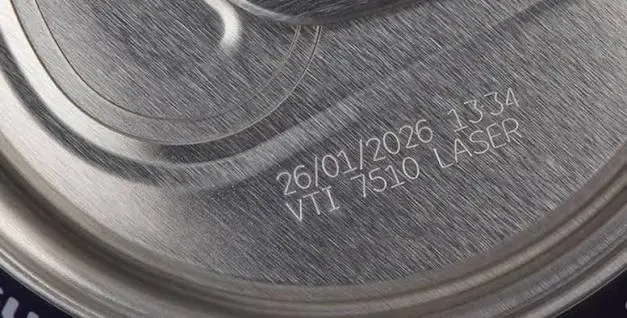
Tiny text looks impressive when it works. A crisp purity stamp on a gold ring, a micro serial number on a surgical tool, a brand name on a small pendant: all of these show off what a fiber laser can do.
But anyone who has tried it knows how quickly small text can go wrong. Letters blur together, the “e” fills in like an “o”, thin lines vanish, and what looked sharp on the screen turns into a smudge on the metal.
The good news is that readable tiny text is not luck. It comes from a handful of simple choices about font, size, spacing, settings, and focus.
In this guide, you will learn how to mark tiny text without losing readability, step by step, in plain language. The tips apply to jewelry, tools, tags, name plates, and any small metal part.
Why Tiny Text Is So Hard to Mark
A laser does not draw with a pen. It draws with a small spot of light, and that spot has a real size. Every letter you mark is built from that spot.
When text is large, the spot is tiny compared with the letters, so you barely notice it. When text is very small, the spot becomes a big part of each stroke. That causes a few common problems:
- Strokes spread. Heat makes the mark slightly wider than the beam itself.
- Gaps close up. The small holes inside letters like “a”, “e”, “8”, and “B” fill in.
- Letters touch each other. Tight spacing turns words into blobs.
- Thin lines disappear. Very fine strokes may not mark at all, or may look uneven.
Once you understand this, the solution is easier to see: make the text simple, give it room, and keep the laser’s spot and heat under control.
Step 1: Choose the Right Font
Font choice is the single biggest factor in how readable tiny text will be.
Use Simple, Clean Fonts
- Choose a plain sans-serif font, with no decorative edges.
- Avoid script, handwriting, and ornate fonts. Their thin and thick strokes do not survive at small sizes.
- Avoid serif fonts for very small text, because the little decorative feet are often too fine to mark clearly.
- Pick a font with open shapes, where the inside spaces of letters are generous.
Choose a Slightly Bold Weight
A regular or medium-weight font often works better than a thin or light one. Thicker strokes give the laser more room to mark clearly. Do not go too bold, though, or the letters may fill in.
Try Single-Line Fonts
Many laser marking programs include single-line (stroke) fonts. Instead of drawing the outline of a letter and filling it in, the laser draws each letter as one line. This is a great option for very small text because:
- It is fast.
- It avoids filling tiny gaps.
- It gives clean, even strokes.
The lines are all one width, which means the result looks consistent and the letters stay open.
Stick to Uppercase for the Smallest Sizes
Capital letters are usually easier to read at tiny sizes than lowercase ones, because they are taller and have simpler shapes. Numbers should also be clear and distinct, so check that characters like 0 and O, or 1 and I, do not look alike.
Step 2: Choose a Realistic Text Size
There is a limit to how small text can go and still be readable. That limit depends on your laser’s spot size, your lens, and the material.
A useful rule of thumb is that each stroke of a letter should be wider than the laser spot, with some margin. If the stroke is about the same as the spot, even small heat spread will blur the letter.
Here are the main points:
- A smaller laser spot allows smaller text. Spot size comes mainly from your lens and focus.
- Short focal length lenses create smaller spots. An F-163 or F-210 lens is usually the best choice for tiny text.
- Different materials behave differently. Some metals hold fine detail better than others.
- Who will read it matters. If it will be read with a loupe or microscope, it can be smaller than text meant for the naked eye.
The most reliable way to find your limit is to mark the same text in several sizes, from large to very small, on scrap material. Look at the results and choose the smallest size that still reads clearly. Then add a small safety margin for real work.
Our guide on how to choose the right fiber laser marking lens explains how the lens affects the size of your laser spot and your fine detail.
Step 3: Give Letters Room to Breath
Spacing matters just as much as size. Letters that are too close will join up as soon as the laser’s heat spreads.
- Increase letter spacing slightly. Many programs have a character spacing setting. A small increase can make a big difference.
- Increase line spacing if you have more than one line of text.
- Leave space around the text. Do not crowd it against edges, stones, or other designs.
- Avoid long words in small spaces. If the text does not fit comfortably, shorten it or use abbreviations.
A good habit is to preview your design, zoom in, and ask: “If every line grew a little wider, would the letters still stay separate?” If not, add more spacing.
Step 4: Keep the Design Simple
The fewer details, the better the text will read.
- Use short words and numbers. Short codes are easier to read than sentences.
- Avoid underlines, outlines, and shadows on tiny text.
- Avoid mixing many fonts or sizes.
- Avoid reversed text (light letters on a dark filled box) at very small sizes, since the surrounding fill adds heat that blurs the letters.
- Prefer horizontal text on flat surfaces. Text that follows a curve is harder to keep sharp.
If the text is a serial number or hallmark, use only the characters you really need.
Step 5: Set Up the Surface Properly
A clean, stable surface gives sharper tiny text.
- Clean the piece. Oil, fingerprints, and dust can cause uneven marks.
- Choose a flat area. Flat surfaces keep every letter at the same focus height.
- Hold the piece firmly. Even tiny movement can blur tiny letters. A fixture table for fiber laser marking machines keeps pieces steady and in the same position each time.
- Be careful with curved items. If you must mark a ring or cylinder, a rotary axis helps, but you should use larger text and test carefully.
- Consider the finish. Matte and satin surfaces often give clearer small text than very shiny ones, which can create glare and make letters harder to read.
If you are marking jewelry, our guide on how to prepare jewelry for fiber laser marking covers cleaning, fixturing, and choosing a good marking area.
Step 6: Get the Focus Exactly Right
Focus is critical for tiny text. If the surface is even slightly too high or too low, the laser spot becomes larger and weaker, and fine strokes turn fuzzy.
- Set the surface at the lens’s focal distance.
- Use the red guide light to check position, if your machine has one.
- Make sure the marking area is level.
- Re-check the focus whenever you change to a piece with a different height.
- Remember that short focal length lenses give a smaller spot, but they are also less forgiving about focus height.
If your tiny text looks sharp in one corner and blurry in another, the piece is probably not level or the focus is slightly off.
Step 7: Choose Gentle Laser Settings
For tiny text, less is usually more. Too much energy makes the mark spread, which is the number one enemy of readable small text.
The exact settings depend on your machine, material, and lens, but these principles help:
- Use lower power. High power spreads heat and widens lines.
- Use moderate to fast speed. Fast movement limits how much heat builds up in one place.
- Adjust frequency carefully. Test to find the frequency that gives a clean, even mark on your material.
- Use tight, even hatch spacing if you are filling the letters, so strokes look solid and not striped.
- Avoid too many passes. Extra passes add depth, but also heat and spread.
- Consider single-line marking. It uses less energy and keeps letters open.
Our guide on how to choose the right marking speed and power for fiber lasers explains these settings in detail and shows how to build a test grid.
Step 8: Thin About Contrast
Tiny text must be easy to see, not just easy to mark.
- On stainless steel, a dark annealed mark often gives the best contrast and stays smooth. Our article on black marking vs. surface engraving on stainless steel explains the difference.
- On gold, silver, and other bright metals, a light, clean engraved mark may read better under good lighting. Test carefully, since reflective metals can behave differently.
- On coated or anodized surfaces, removing the coating can create strong contrast.
- Remember that lighting changes how engraved marks look. Always check your text under the lighting where it will actually be read.
Step 9: Test, Inspect, and Adjust
Never mark a final piece without testing.
- Mark a test line of your text at several sizes on scrap material of the same metal and finish.
- Inspect it under magnification. A loupe or microscope shows problems you cannot see with the naked eye.
- Look for filled-in letters, touching characters, uneven lines, and weak strokes.
- Change one setting at a time: size, spacing, power, speed, or focus.
- Test again until the text is clean and clear.
- Save your best settings and note the material, lens, and font.
If you also mark QR codes or barcodes, the same testing mindset applies. Our guide on how to create permanent QR codes with a fiber laser marker covers how size and contrast affect scanning.
Step 10: Check the Final Result
After marking the real piece:
- Clean away any dust or residue with a soft cloth or ultrasonic cleaner.
- Inspect the text under magnification.
- Make sure no letters are missing, merged, or too light.
- Store the piece so the marked area does not get scratched.
If polishing or plating comes after marking, test that too, because it can wear down or fill in very small marks.
Troubleshooting Tiny Text Problems
Letters Are Filling In or Look Blobby
- Reduce power
- Increase speed
- Increase letter size or spacing
- Switch to a single-line font
- Check the focus
Text Looks Too Light or Faint
- Check the focus first
- Slightly increase power or lower the speed
- Make sure the surface is clean
- Try a slightly bolder font
Some Letters Are Sharp and Others Are Blurry
- Check that the piece is level
- Make sure the piece is firmly held
- Check the focus across the whole marking area
Lines Look Striped or Uneven
- Reduce hatch spacing
- Check speed and frequency settings
- Clean the lens
Text Is Hard to Read Even Though It Marked Well
- Increase size slightly
- Change the marking method for better contrast
- Check the lighting where it will be read
- Use a simpler font
Common Mistakes to Avoid
- Using a thin, decorative, or script font
- Making text smaller than the laser spot can handle
- Packing letters too close together
- Using too much power
- Ignoring focus and leveling
- Skipping the test mark
- Marking on a curved or uneven surface without testing
- Not checking the result under magnification
- Forgetting to save working settings
Laser Safety Reminder
Fiber lasers can seriously injure your eyes, even from reflections off shiny metal.
- Wear laser safety glasses rated for 1064 nm.
- Use fume extraction when marking metals and coated materials.
- Keep reflective items away from the beam path.
- Keep the machine away from children and untrained users.
- Follow your machine manufacturer’s safety instructions.
Quick Checklist for Readable Tiny Text
Design
- Simple, clean sans-serif or single-line font
- Uppercase for the smallest sizes
- Realistic text size, tested on scrap
- Extra letter and line spacing
- Short, simple wording
Setup
- Surface clean and flat
- Piece held firmly
- Focus set exactly
- Short focal length lens for fine detail
Marking
- Gentle power and moderate to fast speed
- Tight, even fill, or single-line marking
- Test mark inspected under magnification
- Settings saved
FAQ
How small can laser-marked text be?
It depends on your laser spot size, lens, material, and font. Short focal length lenses and simple fonts allow smaller text, but you should always test on a sample.
What is the best font for tiny laser text?
A clean sans-serif font with open shapes and a regular or slightly bold weight. Single-line fonts are also excellent for very small text.
Why do small letters fill in?
Usually there is too much heat or the text is too small for the laser’s spot. Reduce power, increase speed, and increase letter size or spacing.
Is uppercase easier to read at small sizes?
Yes. Capital letters are taller and simpler, so they stay clearer when the text is very small.
Which lens is best for tiny text?
Shorter focal length lenses such as F-163 or F-210 give a smaller laser spot, which helps small text stay sharp.
Can I mark tiny text on a curved surface?
Yes, but it is harder. Use larger text, a rotary axis for round items, and test first.
Does the metal affect how small the text can be?
Yes. Different metals and finishes respond differently, so always test on the same material you will use for the final piece.
Should I check tiny text under a magnifier?
Always. A loupe or microscope shows problems you cannot see with the naked eye.
Conclusion
Readable tiny text comes from smart choices, not from pushing the laser harder.
Choose a clean, simple font, pick a realistic size, give your letters room, and keep the design simple. Hold the piece firmly, set the focus carefully, use gentle settings, and always test and inspect under magnification before marking the final piece. Do this consistently and your small text will stay sharp, clear, and easy to read.
If you are setting up or upgrading your laser marking workshop, explore our fiber laser marking machines, field lenses, rotary axes, and fixture tables at MCast 3D. If you are not sure which setup suits your fine marking work, contact our team and we will guide you.