
How to Create and Import Vector Files for Laser Marking

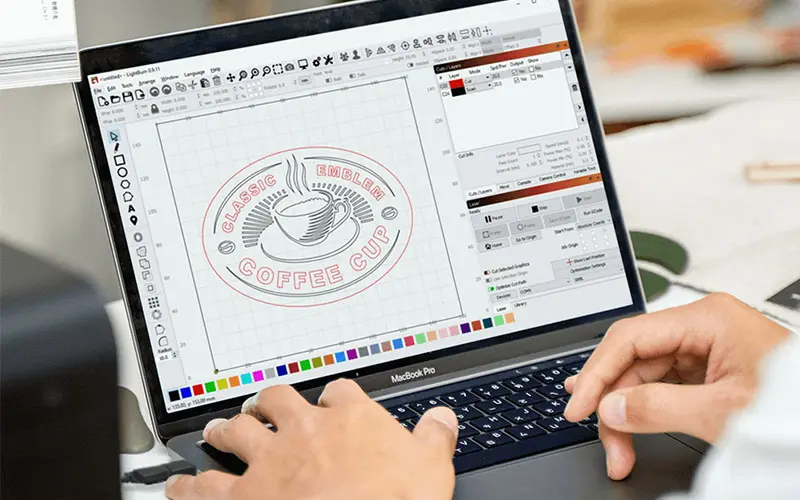
You have a great logo. You open your laser marking software, import the file, and something is wrong. The size is off. The letters are missing. The fill has gaps. The edges look jagged. Or the laser traces every line twice and burns the metal.
Most of these problems have one root cause: the design file was not prepared properly for laser marking.
A laser marker does not understand pictures the way your eyes do. It follows paths, lines, and shapes. The cleaner and better prepared those paths are, the sharper and more reliable your marks will be. That is why vector files are the standard for laser marking.
In this guide, you will learn how to create and import vector files for laser marking, what the common file formats are, how to clean up a design, how to convert a picture into a vector, and how to avoid the most common mistakes, all in plain and simple language.
What Is a Vector File?
There are two main types of image files: raster and vector.
Raster Images
A raster image is made of tiny squares called pixels. Photos and most pictures from the internet are raster images. Common raster formats include JPG, PNG, and BMP.
- They look fine at their original size.
- When you enlarge them, they get blurry or pixelated.
- They do not contain real lines or shapes, just colored dots.
Vector Images
A vector image is made of mathematical lines, curves, and shapes called paths. Instead of storing dots, it stores instructions, such as “draw a curve from here to there.”
- They stay sharp at any size.
- They contain exact outlines that the laser can follow.
- They are easy to edit, resize, and clean up.
The key difference is this: a vector file tells the laser exactly where to go, while a raster file only gives it a picture to guess from. That is why vector files give cleaner edges, sharper text, and more predictable results.
Why Vector Files Matter for Laser Marking
A laser marker works by moving a small spot of light along paths. When your file is a clean vector, the machine can follow the exact outline of your design and fill it neatly.
- Sharp edges. Curves and corners stay crisp.
- Accurate size. You can set exact dimensions in millimeters.
- Clean fills. The software can fill closed shapes with even hatch lines.
- Scalable. You can make a logo bigger or smaller without losing quality.
- Editable. You can fix problems before marking, not after.
- Faster marking. Clean paths with fewer points mark faster and more smoothly.
This is especially important for tiny text, small logos, and QR codes, where every line matters.
When Raster Images Are Still Used
There are cases where raster images are used on purpose, such as marking photographs on some materials. In that case, the laser reads the image as dots or grayscale and marks accordingly.
But for logos, text, symbols, and serial numbers, a vector file almost always gives better results. For a deeper look at fine text, read our guide on how to mark tiny text without losing readability.
Common Vector File Formats for Laser Marking
Different marking programs support different formats, and the exact list depends on your software and version. Here are the most common ones.
| Format | What It Is | Notes |
|---|---|---|
| DXF | A CAD drawing format | Very common and widely supported. Great for precise shapes and sizes. |
| AI | Adobe Illustrator file | Popular for logos. Older versions are sometimes more compatible. |
| SVG | Scalable vector graphics | Common on the web and in free design tools. Support varies by software. |
| PLT / HPGL | Plotter format | Widely supported by laser software. |
| EPS | Encapsulated PostScript | A common graphic format, support varies. |
| Can contain vector or raster | Works only if it contains real vector paths. | |
| DWG | AutoCAD drawing | Often needs to be saved as DXF first. |
Many laser marking programs, such as EZCAD, can import common formats like DXF, AI, and PLT, as well as raster formats like BMP and JPG. Always check your own software and version to see which formats it supports.
A good rule of thumb: DXF is usually the safest choice because it is widely supported, but test your own setup.
Tools to Create Vector Files
You do not need expensive software to make good vector files. Here are some popular options.
- Inkscape. A free and powerful vector design program.
- Adobe Illustrator. A professional standard for logos and artwork.
- CorelDRAW. A common choice in the sign and engraving industry.
- AutoCAD, LibreCAD, and other CAD programs. Good for technical drawings and exact dimensions.
- Your marking software’s built-in tools. Many laser programs let you draw basic shapes and add text directly.
Any of these will work. The best one is the one you are comfortable using.
Step 1: Start with the Right Design
Before you open any software, think about what the laser can actually do. Good laser designs are:
- Simple. Bold shapes with clear edges work best.
- High contrast. Clear difference between marked and unmarked areas.
- Not too small. Very thin lines and tiny gaps may disappear or fill in.
- Suited to the surface. Curved objects need extra care. See our guide on how to mark logos on rings and other small curved objects.
If you are starting from an existing logo, check whether it uses very thin lines, gradients, shadows, or tiny details. You may need to simplify it first.
Step 2: Set Up Your Document at the Right Size
This step prevents one of the most common problems: marks that come out the wrong size.
- Choose millimeters as your unit. Most laser software uses millimeters.
- Create the document at the real size you want to mark, or at least in the right proportions. For example, if the logo should be 20 mm wide, draw it 20 mm wide.
- Keep the artwork within the marking area of your lens. Our guide on how to choose the right fiber laser marking lens explains how lens choice affects field size.
- Place the design near the center of the artboard, with some empty space around it.
Working at actual size makes it much easier to judge line thickness and detail.
Step 3: Create or Prepare the Artwork
Now draw or prepare your design.
Drawing Shapes and Lines
- Use the pen, shape, and line tools to create your design.
- Keep shapes clean and simple.
- Avoid extra nodes (points) where they are not needed.
Adding Text
Text is the part that causes the most trouble when importing. Here is how to handle it well.
- Choose a clear, bold font. Thin or decorative fonts may disappear at small sizes.
- Set the size so the letters are readable at the final marking size.
- Adjust spacing between letters if needed.
- Convert text to outlines (also called “convert to curves” or “create outlines”). This turns the letters into shapes, so your laser software does not need the font installed. It prevents missing or changed letters.
A very important rule: always convert text to outlines before exporting, unless you plan to use your laser software’s own text tool.
Using Single-Line Fonts
For very small text, a single-line (stroke) font can be a good choice, because the laser draws each letter as one line instead of filling an outline. Some marking programs include these fonts. Our guide on how to mark tiny text without losing readability explains when they help.
Step 4: Clean Up the Paths
Cleaning your paths is where good files are made. A messy file can cause marking errors, missing fills, and double burns.
Close Open Paths
If a shape is meant to be filled, its outline must be closed, meaning it starts and ends at the same point with no gap. Open paths will not fill properly in most laser software.
Remove Duplicate Lines
Sometimes two identical lines sit exactly on top of each other. The laser will mark them both, which doubles the energy and can burn the surface. Check for duplicates and delete them.
Merge Overlapping Shapes
If two shapes overlap, the overlapping area may be filled twice. Combine or merge them into one single shape using a “unite” or “merge” tool.
Remove Tiny Objects and Stray Points
Tiny dots, specks, and stray points can end up as unwanted marks. Delete anything that is not part of the design.
Simplify Excessive Notes
Very complex paths with thousands of tiny points can make marking slow and jerky. Use a “simplify” tool to reduce the points while keeping the shape accurate.
Avoid Hairline Strokes
A very thin stroke may be too fine for the laser to mark clearly. Make sure your lines are thick enough for your laser spot size, or convert them to filled shapes.
Convert Strokes to Outlines
If your design uses lines with thickness (strokes), convert them to filled shapes using “outline stroke” or “stroke to path.” Otherwise your marking software may treat them as single thin lines and lose the thickness.
Keep Things Simple
Remove gradients, shadows, effects, and transparency. These do not translate to laser marking, and they can cause import problems.
Step 5: Convert a Picture into a Vector (Tracing)
Sometimes all you have is a JPG or PNG of a logo. You can convert it into a vector by tracing.
How Tracing Works
Tracing software looks at the pixels and creates paths around the shapes. Here are the common tools.
- Image Trace in Adobe Illustrator
- Trace Bitmap in Inkscape
- Vectorize tools in CorelDRAW
- Online vectorizing tools
Tips for Better Tracing
- Start with the best image you can find. A larger, sharper image gives a better result.
- Convert it to black and white before tracing, since laser marking usually needs a simple two-tone design.
- Adjust the threshold so the shapes look right without losing detail or adding noise.
- Choose the right tracing mode, such as black and white or silhouette, rather than full color.
- Clean up the result. Remove stray bits, fix rough edges, and check small gaps.
- Zoom in and inspect. Look for jagged lines or lumpy curves.
- Redraw problem areas by hand if needed. Sometimes it is faster and cleaner to redraw simple logos from scratch.
A traced file is only as good as the original image. If the original is tiny or blurry, the traced version will be rough, and redrawing may be a better option.
Step 6: Choose Fill or Outline
Before you export, think about how you want the laser to mark each shape.
- Fill (hatch): The laser fills the inside of a shape with parallel lines. Good for solid logos, filled text, and QR code squares.
- Outline (contour): The laser traces only the outline. Good for thin lines, single-line text, and very light marks.
- Both: An outline pass plus a fill can give crisper edges.
The fill spacing matters a lot for quality. Our guide on laser hatch spacing and how it affects mark quality explains how to choose a good value.
Step 7: Export the File
Now save your file in a format your laser software can read.
Exporting a DXF
- Choose “Save As” or “Export.”
- Select DXF as the file type.
- If you are given a version choice, an older version such as R12 or a similar older format is often the most compatible.
- Make sure units are set to millimeters.
Exporting an AI File
- Choose “Save As” and select Adobe Illustrator (AI).
- If the file will not import properly, try saving it in an older version of the format.
- Make sure text is converted to outlines first.
Exporting an SVG, PLT, or Other Format
Similar steps apply. If your marking software does not support one format, try another, or open the file in a different program and re-export.
Keep the Original File
Always save your original editable design as well. You may need to change it later.
Step 8: Import the File into Your Marking Software
w open your laser marking software and bring the file in. The exact steps differ between programs, but the general process is the same.
- Open or create a new document.
- Use the Import or Open command and select your file.
- Check the size. Compare the imported size with the size you expected. If it is wrong, you can scale it, but find out why it changed.
- Check for missing parts. Look for missing text, lost lines, or changed shapes.
- Ungroup and inspect objects if the software merged them.
- Check that closed shapes are closed. If a fill does not work, an open path is the likely cause.
- Center the design in the marking area.
- Assign layers or colors to different parts if you want different settings for different areas.
Step 9: Set Up Marking Parameters
After import, set up the marking itself.
- Choose fill or outline for each object.
- Set hatch spacing and angle for filled areas.
- Set power, speed, and frequency for your material.
- Preview the marking path, if your software allows it.
Our guide on how to choose the right marking speed and power for fiber lasers explains how these settings work together.
Step 10: Test on Scrap Material
Always test before marking the real piece.
- Use a sample of the same material and finish.
- Mark the design at its real size.
- Inspect under magnification. Check for missing parts, jagged edges, double lines, and uneven fills.
- Fix any issues in your design file, not just in the laser settings. Many problems come from the file, not the machine.
- Save the final file and settings together, with notes.
Special Cases
Vector Files for QR Codes
A QR code is made of tiny squares, and clean edges are essential for scanning. Use the barcode tool in your marking software, or export the code as a vector file from a QR generator. Avoid using blurry images of QR codes. Our guides on how to create permanent QR codes with a fiber laser marker and how to improve QR code readability on small metal components cover this in more detail.
Vector Files for Jewelry
Jewelry designs are small and detailed, so clean vectors matter even more.
- Keep lines bold enough to mark clearly.
- Avoid very thin gaps.
- Check the design at its real size, such as 8 mm wide.
- Place the design on a flat or gently curved area. Our guide on how to prepare jewelry for fiber laser marking explains how to prepare pieces.
Vector Files for Curved Objects
When marking on rings, pens, or tubes with a rotary axis, the software wraps the design around the object. Keep the artwork simple and make sure the dimensions match the diameter. See our guide on how to mark logos on rings and other small curved objects.
Vector Files for Plated Items
Plating is thin and easy to burn through. Use simple, clean designs that mark with minimal energy. Our guide on laser marking gold-plated objects explains more.
Color Marking on Stainless Steel
Color marking often uses separate layers for each color, so clean, separate shapes make the process much easier. See our guide on how to mark stainless steel in color with a fiber laser.
Troubleshooting Common Import and Marking Problems
The Design Imports at the Wrong Size
- Check the units in both programs, such as millimeters vs. inches
- Check the document size and scaling when exporting
- Re-export at actual size
Text Is Missing or Looks Different
- Convert text to outlines before exporting
- Check that the font was not substituted
- Re-export the file
The Fill Does Not Work or Has Gaps
- Make sure paths are closed
- Remove overlapping shapes
- Check that strokes were converted to filled shapes
The Laser Marks Everything Twice
- Look for duplicate lines on top of each other
- Delete duplicates
- Merge overlapping objects
The Edges Look Jagged
- Check whether you imported a raster image instead of a vector
- Simplify or smooth the paths
- Increase the quality of the tracing
- Check that the lens focus is correct
Marking Is Very Slow or Jerky
- Simplify paths to reduce unnecessary nodes
- Remove tiny objects and stray points
- Check hatch spacing
The File Will Not Import at All
- Try saving in a different format, such as DXF
- Try an older version of the file format
- Remove effects, transparency, and unusual objects
- Check that your software supports the format
Fine Details Disappear When Marked
- Make lines thicker or shapes larger
- Use a shorter focal length lens for a smaller spot
- Reduce power to limit heat spread
- Simplify the design
Common Mistakes to Avoid
- Using a low-resolution JPG instead of a vector
- Forgetting to convert text to outlines
- Leaving open paths in shapes that need filling
- Leaving duplicate or overlapping lines
- Using hairline strokes
- Not checking the size after import
- Including gradients, shadows, and effects
- Tracing a poor-quality image without cleaning it up
- Skipping the test mark
- Not saving the original editable file
Quick Checklist for Laser-Ready Vector Files
Design
- Simple, bold shapes
- Clear contrast
- No gradients, shadows, or effects
- Drawn at actual size in millimeters
Cleanup
- Text converted to outlines
- Strokes converted to shapes
- Paths closed
- Duplicates and stray points removed
- Overlaps merged
- Nodes simplified
Export and import
- Saved in a supported format, such as DXF
- Original file kept
- Size and content checked after import
- Fill or outline chosen for each object
Testing
- Test mark on scrap of the same material
- Edges and details inspected under magnification
- File fixed if problems appear
- Final file and settings saved together
FAQ
What file format is best for laser marking?
DXF is often the safest choice because it is widely supported, but the best format depends on your marking software. Check which formats your software can import.
Can I use JPG or PNG for laser marking?
You can, but the results are usually worse than with a vector file. Raster images have pixel edges and can look jagged. For logos and text, convert the image to a vector first.
How do I convert a logo to a vector?
Use a tracing tool, such as Image Trace in Illustrator or Trace Bitmap in Inkscape. Start with the best image you can find, convert it to black and white, trace it, and clean up the result.
Why is my text missing after import?
The font was probably not available in your laser software. Convert text to outlines before exporting, and the letters will be saved as shapes.
Why does my fill have gaps or not work?
The most common cause is an open path. A shape must be closed to fill properly. Overlapping shapes and unconverted strokes can also cause problems.
Why does the laser mark my design twice?
There are probably duplicate lines stacked on top of each other. Delete the duplicates and merge overlapping shapes.
What size should I create my file?
Create it at the actual size you want to mark, using millimeters, and keep it within your lens’s marking area.
Is free software good enough to create vector files?
Yes. Free programs like Inkscape can create and export good vector files for laser marking.
Can I mark Photographs with a laser?
Some materials and machines can mark photos using raster modes, but results depend on the material and settings. For logos, text, and codes, vector files are better.
Do I need to simplify design?
Often yes. Very thin lines, tiny gaps, and complex details may not mark clearly. Simple, bold designs give the best results.
Conclusion
Clean vector files are the foundation of clean laser marks. They give the laser exact paths to follow, so edges stay sharp, fills stay even, and sizes stay accurate.
Start by designing simple, bold artwork at its real size in millimeters. Convert text to outlines, convert strokes to shapes, close your paths, remove duplicates, and simplify the points. Export in a format your software supports, such as DXF, check the size and content after import, and always test on scrap material before marking the real piece. Do this every time, and many common marking problems will disappear before the laser even turns on.
If you are setting up or upgrading your marking workshop, explore our fiber laser marking machines, field lenses, rotary axes, and fixture tables at MCast 3D. If you are not sure which setup suits your work, contact our team and we will help you choose.