
How to Choose the Right Marking Speed and Power for Fiber Lasers

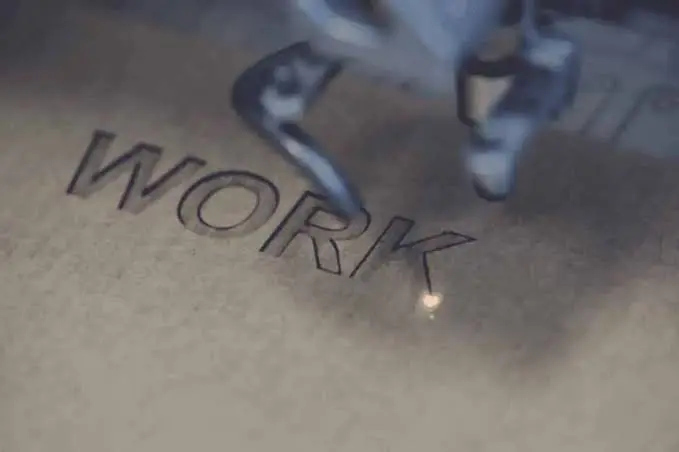
You have set up your fiber laser, loaded your design, and pressed start. The mark appears, but something is wrong. It is too faint, too deep, burnt around the edges, or the text looks rough.
In most cases, the cause is not the machine. It is the balance between marking speed and power.
These two settings work together like the gas pedal and the brakes in a car. Too much power or too little speed can burn your material. Too little power or too much speed gives you weak, shallow marks. Once you understand how they work, finding the right balance becomes much easier.
In this guide, you will learn how to choose the right marking speed and power for fiber lasers, what each setting does, and how to test and fine-tune your results for metals, jewelry, tools, and more.
The Basics: What Power and Speed Actually Do
A fiber laser marks by delivering energy to the surface of a material. How much energy the material receives decides how the mark looks.
- Power is how strong the laser beam is. More power means more energy.
- Speed is how fast the beam moves across the surface. Slower speed means the beam stays longer on each spot, so the material receives more energy.
The key idea is simple: the mark depends on the total energy the surface receives. You can reach a similar result with high power and high speed, or with lower power and lower speed. The difference is in the quality of the mark.
A simple Example
Think about holding a magnifying glass over paper in the sun. If you move it quickly, nothing happens. If you hold it still, the paper burns. The sunlight is the same, and the only change is how long it stays in one place.
A laser works in a similar way, just much faster and with far more control.
The Other Settings That Work With Speed and Power
Speed and power are the stars, but a few other settings change how they behave. Understanding these will help you avoid guessing.
Frequency
Most fiber marking lasers work in pulses, which are very short flashes of light fired many thousands of times per second. Frequency is how often those pulses are fired, usually measured in kHz.
- Lower frequency means fewer pulses, but each pulse carries more energy. This is good for deeper engraving.
- Higher frequency means more pulses with less energy in each. This gives smoother, lighter marks and is often used for surface marking and annealing.
Changing frequency can change the look of a mark even if power and speed stay the same.
Pulse Width
Some fiber lasers allow you to adjust pulse width, which is how long each pulse lasts. This is mostly found on MOPA-type lasers. It gives more control over color marking, fine detail, and heat-sensitive materials. If your machine does not offer it, you can still get excellent results with power, speed, and frequency.
Hatch (Line) Spacing
When the laser fills an area, it draws many close parallel lines. The distance between them is the hatch spacing.
- Tight spacing gives a solid, even fill but adds more energy and heat.
- Wide spacing can leave visible stripes and a weaker-looking mark.
Number of Passes
Running the same design more than once deepens the mark. Extra passes give more depth but also more heat and time.
Focus
Focus is easy to forget but extremely important. Out-of-focus beams are weaker and wider, so even perfect power and speed settings will give a poor mark. Always set the focus before you adjust other settings.
How Power and Speed Affect Your Mark
Here is a simple way to picture what happens when you change each one.
| If you | You usually get |
|---|---|
| Increase power | Deeper, darker, or stronger marks, but more risk of burning |
| Decrease power | Lighter, shallower marks, with cleaner small details |
| Increase speed | Lighter marks, faster work, less heat |
| Decrease speed | Deeper, darker marks, more heat, slower work |
| Increase frequency | Smoother, lighter surface marks |
| Decrease frequency | Stronger, deeper pulses |
| Add passes | More depth, more heat |
These are general trends. The exact results depend on your material, lens, and laser.
Choosing Power and Speed by Marking Type
Different jobs need different balances.
Surface Marking (Light Marks and Annealing)
This is used for logos, text, and dark marks on stainless steel and other metals without removing much material.
- Use lower to moderate power.
- Use slower to moderate speed so the surface heats evenly.
- Often uses higher frequency for smooth results.
- The goal is to heat, not remove, the metal.
Engraving (Deeper Marks)
Used when you want a deeper, physical mark that can be felt and will last through wear.
- Use higher power.
- Use moderate speed.
- Often uses lower frequency for stronger pulses.
- May need multiple passes.
Ablation (Removing Coatings)
Used on anodized aluminum, painted, or coated surfaces to reveal the metal underneath.
- Use moderate power.
- Use faster speeds.
- The aim is to remove only the coating, not cut into the metal.
Fine Detail and Small Text
Used for jewelry hallmarks, micro text, and small QR codes.
- Use lower power, so marks do not spread.
- Use moderate to fast speed.
- Choose a short focal length lens for a smaller, sharper spot.
- Keep the hatch spacing tight and even.
For small codes, our guide on how to create permanent QR codes with a fiber laser marker shows how these settings affect scanning.
How Material Changes Your Settings
Every material responds differently, so you cannot copy settings from one metal to another.
- Stainless steel: Marks very well, and works with annealing, engraving, and ablation.
- Aluminum: Heat spreads quickly, so it often needs different settings from steel. Anodized aluminum marks easily with lighter settings.
- Brass and copper: Reflective and conduct heat well, so they may need careful testing.
- Gold and silver: Very reflective and valuable, so test carefully on a sample first. Our guide on how to prepare jewelry for fiber laser marking covers this in detail.
- Titanium: Can show color effects depending on heat and settings.
- Plastics: Heat-sensitive, so they usually need lower power and faster speeds.
If you are unsure about a material, begin with low power and fast speed, and increase gradually.
How Laser Power and Lens Choice Work Together
Your laser’s maximum power and your lens both affect the settings you should use.
- A 20W or 30W laser has less energy to spread, so shorter lenses that make smaller spots usually give stronger marks.
- A 50W laser has more power, so it can work well with longer lenses and larger areas.
- A short focal length lens (like F-163 or F-210) makes a smaller spot, which concentrates energy and gives finer detail.
- A longer focal length lens (like F-330 or F-420) spreads the energy, so you may need slower speeds or more power for the same mark.
If you change your lens, expect to adjust your settings too. Our guide on how to choose the right fiber laser marking lens explains this in detail, and you can browse our field lens options and Raycus fiber laser marking machines in 30W and 50W versions.
A Step-by-Step Method to Find Your Best Settings
The most reliable way to find the right settings is a simple test grid. It takes a few minutes and removes the guesswork.
Step 1: Prepare Your Test Piece
Use a scrap piece of the same material and finish as your final product. Clean it and hold it firmly in place.
Step 2: Set the Focus
Set the correct focus height before you test. Poor focus ruins every result.
Step 3: Start Conservatively
Begin with low to moderate power and a moderate speed. It is much safer to start light and increase than to start strong and burn the piece.
Step 4: Build a Test Grid
Mark a grid of small squares, changing one setting along each direction:
- Across the grid, change power in small steps.
- Down the grid, change speed in small steps.
Label each square so you know the settings used.
Step 5: Inspect the Results
Look at each square under good light or a magnifier. Check for:
- Even color or depth
- Clean, sharp edges
- No burning, melting, or discoloration around the edges
- No stripes or gaps in the fill
Step 6: Choose the Best Result
Pick the square with the best mark using the least energy. Less energy means less heat, less wear on your equipment, and cleaner details.
Step 7: Fine-Tune
Make small changes to frequency, hatch spacing, or passes if needed. Change only one thing at a time so you know what caused each difference.
Step 8: Save Your Settings
Write down or save your best settings with the material, lens, and date. This saves a lot of time on future jobs.
Reading the Signs: Troubleshooting Your Mark
Your mark tells you what to change.
The Mark Is Too Faint
- Increase power slightly
- Reduce speed slightly
- Check the focus
- Check that the lens is clean
- Reduce hatch spacing
The Mark Is Too Deep or Burnt
- Reduce power
- Increase speed
- Reduce passes
- Increase hatch spacing slightly
The Edges Look Rough or Blurry
- Reduce power, as too much heat spreads
- Check focus carefully
- Reduce frequency or speed if the mark looks uneven
- Make sure the piece is held firmly
The Fill Has Stripes or Lines
- Reduce hatch spacing
- Check that speed and frequency are well matched
- Check focus
The Color Is Uneven
- Make sure the surface is clean and the same finish across the piece
- Check that the piece is level
- Adjust speed and frequency slowly
The Material Is Warping or Discoloring
- Reduce power
- Increase speed
- Let the piece cool between passes
- Use settings suited for heat-sensitive materials
Common Mistakes to Avoid
- Using high power because “more is better”
- Copying settings from another material without testing
- Changing several settings at once
- Ignoring focus problems
- Skipping the test grid on valuable pieces
- Forgetting to save good settings
- Using the same settings after changing lens
- Not cleaning the lens and the surface
Laser Safety Reminder
Fiber lasers can cause serious eye injury, even from reflections off shiny surfaces.
- Wear laser safety glasses rated for 1064 nm.
- Use fume extraction when marking metals, plastics, or coated materials.
- Keep reflective items away from the beam path.
- Keep the machine away from children and untrained people.
- Follow the safety instructions from your machine’s manufacturer.
Quick Settings Checklist
Before testing
- Material and finish identified
- Surface clean and flat
- Piece held firmly
- Lens clean and focus set
During testing
- Start with low to moderate power
- Test a grid of power and speed
- Change one setting at a time
- Inspect under magnification
After testing
- Choose the result that uses the least energy
- Save settings with material, lens, and notes
- Retest if material, lens, or finish changes
FAQ
What is the best power setting for a fiber laser?
There is no single best setting. It depends on your material, lens, laser power, and the type of mark you want. A test grid is the best way to find the right value.
Should I use high power and high speed, or low power and low speed?
Both can give similar results, but they feel different. High power with high speed is faster. Low power with lower speed can give cleaner detail and less heat spread. Test both to see what suits your work.
Why does my laser mark look burnt?
Usually there is too much energy for the material. Try lowering the power, increasing the speed, or reducing the number of passes.
Why is my mark too light?
The energy may be too low, or the focus may be off. Check the focus first, then increase power or reduce speed in small steps.
Does frequency matter?
Yes. Lower frequencies give stronger pulses for deeper engraving, and higher frequencies give smoother surface marks. It is worth testing, especially for annealing.
Do I need to change setting when I change the lens?
Yes. A different lens changes the spot size and energy concentration, so power, speed, and focus usually need adjustment.
Can I use the same settings for gold and silver?
Not always. Gold and silver respond differently, and their alloys vary. Always test on a sample of the same metal and finish.
How many passes should I use?
Start with one pass. Add more only if you need extra depth. More passes mean more heat and more time.
Conclusion
Choosing the right marking speed and power is about balance, not guesswork.
Start with a clean, focused setup. Understand how power, speed, frequency, and hatch spacing work together. Use a simple test grid on scrap material, choose the result that gives the best mark with the least energy, and save your settings for next time. Do this consistently and you will get clean, repeatable marks and waste less time and material.
If you are building or upgrading your laser marking setup, explore our fiber laser marking machines, lenses, rotary axes, and fixture tables at MCast 3D. If you need help matching the right machine and lens to your work, contact our team and we will guide you.