
When Should You Replace a Resin Printer’s LCD Screen?

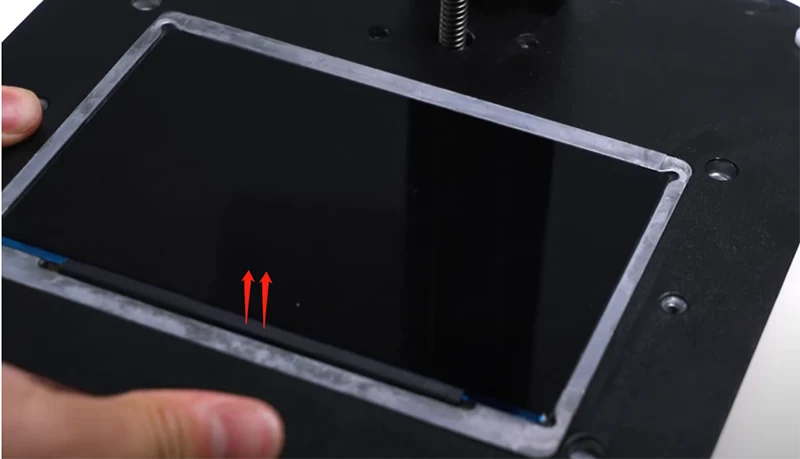
The LCD screen is one of the most important parts of a resin 3D printer. It decides what shape each layer takes, and over time it wears out.
The tricky part is that LCD wear rarely happens overnight. Prints slowly get worse, small details fade, and many people blame the resin or the settings long before they suspect the screen.
So when is it time for resin printer LCD screen replacement? This guide explains how the screen works, how long it lasts, the warning signs to watch for, and how to make it last longer.
What Does The LCD Screen Do in a Resin Printer?
MSLA resin printers (the most common type today) use a UV light source underneath the vat. The LCD sits between that light and the resin.
The screen works like a stencil. It blocks light in some areas and lets it through in others. Wherever UV light passes through, the resin hardens. Layer by layer, that creates your model.
Most modern printers use a mono LCD, which is a black-and-white screen that lets far more UV light through than older RGB screens. That means shorter exposure times and a longer screen life.
Because the LCD is exposed to strong UV light every time you print, it ages with use.
How Long Does a Resin Printer LCD Last?
There is no single number that fits every printer, but a good rule of thumb is this: a mono LCD usually lasts for a couple of thousand hours of exposure time. Some last longer, some fail sooner.
Notice the words exposure time. The screen only ages while it is lit. If you print for 10 hours, but the LCD is only exposing for 4 of those hours, the screen’s life is shortened by about 4 hours, not 10.
The actual resin printer LCD lifespan depends on:
- Exposure time per layer (longer exposures wear the screen faster)
- How often you print
- Resin type (some resins need more exposure than others)
- Heat around the screen
- Screen quality and brand
- Whether you use a screen protector
Some printers show an LCD usage counter or total print time. If yours does, check it from time to time. It is a helpful guide, though it is not a guarantee. A screen can fail earlier or run longer than the counter suggests.
7 Signs It’s Time to Replace your Resin Printer’s LCD
Here are the most common warning signs, starting with the clearest ones.
1. Dead or Stuck Pixels
Dead pixels are tiny spots on the screen that no longer switch correctly. They may stay permanently light or permanently dark.
If a pixel stays dark, the resin above it may never cure properly. If it stays light, resin may cure where it should not. Either way, you may see small holes, bumps, or marks on your prints in the same place every time.
A few dead pixels in an unimportant area might be tolerable. A growing number, or any in your main print area, is a good reason to replace the screen.
2. Dark Spots, Burn-In or Yellowing
Over time, UV light can leave visible dark patches or a yellowish tint on the screen. This is a sign the LCD is getting old.
These areas block more light than they should. Resin printed over them may be under-exposed, which can lead to soft details or weak layers.
3. Prints Fail in the Same Area Every Time
If failures keep happening in one part of the build plate, and moving the model around fixes the problem, the screen is a strong suspect.
This is one of the best clues you can get. A resin problem or a bad support strategy would not usually follow a specific spot on the plate.
4. Uneven or Patchy Exposure
When one side of a print looks perfect and the other side looks soft, weak, or under-cured, the light is not reaching the resin evenly.
This can come from an aging LCD, but it can also come from a weak UV light source. We will look at how to tell the difference below.
5. Loss of Fine Detail
Fine lettering, thin lines, and sharp edges depend on crisp pixel control. As the LCD ages, light can bleed more, and small features can blur or disappear.
This is especially noticeable on high-resolution printers used for jewelry and dental models, where small details matter most. If you are comparing printers, our guide on 8K vs 16K resin 3D printers explains how resolution affects print quality.
6. Lines, Bands, or Flickering on the Screen
If you run the printer’s screen test and see lines, color patches, flickering, or parts of the image missing, the LCD or its ribbon cable has a problem.
Loose or damaged ribbon cables can cause similar symptoms, so check the connection before assuming the whole screen is dead.
7. Cracks or Resin Damage
A cracked LCD should be replaced right away. Do not keep printing with it.
Resin damage is just as serious. If the release film (FEP or NFEP) tears and resin reaches the screen, it can seep into the layers of the LCD and cause permanent marks. Clean the spill immediately and inspect the screen carefully afterwards. If you see stains that do not wipe away, the screen may be damaged.
How to Test Your LCD Screen
Before buying a replacement, run a few simple checks. It takes only a few minutes and could save you money.
- Run the built-in screen test. Most resin printers have an LCD or exposure test in the menu. Look for dead pixels, missing areas, lines, or uneven brightness.
- Print a calibration model. An exposure test or calibration print shows whether quality changes across the plate.
- Move the model. Print the same model in a different position. If the defect moves with it, the problem is the file or supports. If it stays in the same place, the problem is the hardware.
- Clean the screen gently. With the printer switched off and unplugged, wipe the screen with a clean, lint-free cloth. Dust and tiny resin specks can look like screen damage.
- Check the cables. Make sure the LCD ribbon cable is fully seated and not creased or damaged.
If you are also seeing other print problems, our guide on why resin 3D prints fail can help you rule out settings, resin, and supports before you blame the screen.
Is It the LCD or the UV Light Source?
This is a very common point of confusion. Both parts can cause uneven or weak exposure, but they are different parts with different fixes.
Here is a simple way to think about it:
- Pixel-level problems (dead pixels, dark patches, lines, fixed spots) usually point to the LCD.
- Broad dimming or uneven brightness across a large area usually points to the UV light source or its lens.
If your screen test looks clean but prints are still under-cured, check the UV light and the light path before spending money on a new LCD. Swapping the wrong part is a frustrating and expensive mistake.
Should You Replace the LCD or Buy a New Printer?
In most cases, replacing the LCD is much cheaper than buying a new printer. If the rest of the machine is in good shape, replacement is usually the sensible choice.
It is worth considering a new printer if:
- The printer is very old and has other worn-out parts
- A replacement LCD is hard to find for your model
- The cost of repairs is getting close to the price of a newer machine
- You want higher resolution or a larger build area anyway
If you decide to upgrade, take a look at our resin printers to compare current options.
How to Replace a Resin Printer LCD Screen (The Basics)
The exact steps depend on your printer model, so always follow the manufacturer’s guide. In general, the process looks like this:
- Power off and unplug the printer.
- Remove the vat and build plate.
- Open the base and unscrew the LCD cover or frame.
- Carefully disconnect the ribbon cable. It is fragile, so handle it gently.
- Lift out the old LCD and note exactly how it was placed.
- Clean the area where the new screen will sit.
- Install the new LCD, reconnect the cable, and make sure it is flat and seated correctly.
- Reassemble, then run the screen test before printing.
A few tips for a smooth replacement:
- Work in a clean, well-lit space.
- Do not touch the LCD surface with bare fingers.
- Keep screws organized so none get lost.
- Make sure the replacement is the correct size and resolution for your printer.
- After the swap, level the build plate again and run an exposure test.
If you are unsure about opening the printer, it is better to ask for help than to risk damaging the cable or the new screen.
You can browse compatible screens in our LCD accessories category.
How to Make Your LCD Screen Last Longer
You cannot stop an LCD from aging, but you can slow it down. These habits make a real difference:
- Use a screen protector. It guards against scratches and resin splashes, and it is much cheaper to replace than the LCD.
- Keep your release film in good shape. A worn or damaged NFEP film can tear and let resin reach the screen. Replace it regularly.
- Use the right exposure settings. Over-exposing wastes screen life. Start with the resin manufacturer’s recommended settings and fine-tune with a test print.
- Choose a resin that suits your printer. Resins that cure faster can reduce total exposure time.
- Do not leave the screen lit. Avoid test patterns and long idle exposures.
- Keep the printer cool. Heat is hard on electronics. Make sure the cooling fan works and the vents are clear.
- Keep it clean. Remove dust and resin specks gently and never use harsh chemicals on the screen.
- Handle the vat carefully. Avoid dropping tools or the build plate onto the screen.
These small habits can add hundreds of hours to your screen’s life, which matters a lot if you run your printer every day for jewelry, dental models, or small-batch production.
FAQ
How do I know if my resin printer’s LCD is dying?
The most common signs are dead pixels, dark or yellow patches, prints failing in the same spot, uneven exposure, and loss of fine detail. A screen test usually makes the problem easy to see.
How many hours does a mono LCD last?
Most mono LCDs last roughly a couple of thousand hours of exposure time, though results vary with the printer, resin, and exposure settings.
Can I keep printing with a few dead pixels?
Sometimes, yes. If the dead pixels are in an area you do not use, or your models are not very detailed, you can continue for a while. For jewelry, dental, or precision work, even a few can cause visible flaws.
Can a resin printer LCD be repaired?
In practice, a damaged LCD is almost always replaced rather than repaired. A loose cable can sometimes be reseated, but dead pixels, burn-in, and cracks need a new screen.
Does a screen protector affect print quality?
A good quality protector has very little effect on print quality when set up correctly. Some users adjust their exposure slightly after fitting one, so run a calibration print afterwards.
How often should I replace the LCD?
There is no fixed schedule. Replace it when you see clear signs of wear, or when it reaches the end of its expected life and print quality starts to drop.
Conclusion
An LCD screen does not fail all at once. It fades slowly, and the first signs are easy to miss.
Watch for dead pixels, dark patches, uneven exposure, loss of detail, and failures that always happen in the same spot. Run a screen test, rule out the UV light source and cables, and then decide whether a replacement makes sense.
A new LCD costs far less than a new printer, and with a little care (a screen protector, healthy release film, and sensible exposure settings) your next screen can last a long time.
If you need a compatible screen or any other resin printer part, you can explore the full range at MCast 3D.