
Why Resin 3D Prints Fail: 12 Common Problems and How to Fix Them

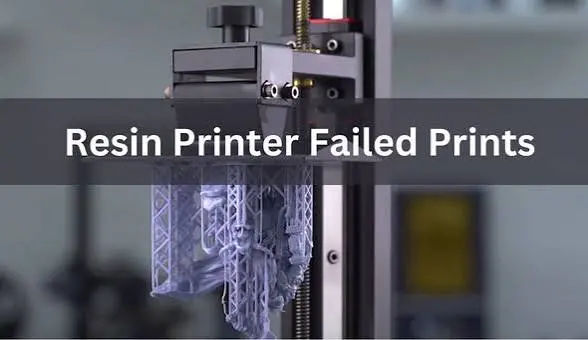
Resin 3D printing can produce remarkably detailed parts, but even a good printer can produce failed prints.
A print may detach from the build plate, develop cracks, lose fine details, or come out partially formed. In most cases, the printer itself is not the only thing to blame. Resin condition, exposure settings, supports, temperature, leveling, and post-processing can all affect the result.
The good news is that most resin 3D printing problems have identifiable causes.
This guide covers 12 common resin printing failures and practical ways to fix them.
1. Print Does Not Stick to the Build Plate
One of the most common resin printer problems is a print that remains in the vat instead of attaching to the build plate.
Common causes
- Incorrect build plate leveling
- Insufficient bottom exposure
- Dirty build plate
- Incorrect Z-offset
- Poor first-layer settings
- Extremely cold resin
How to fix it
Start by checking the build plate and leveling procedure. Make sure the plate is clean and properly secured.
Next, check the bottom exposure settings in your slicer. Increasing bottom exposure can improve adhesion, but excessive exposure may make the first layers difficult to remove.
If the problem continues, check the resin manufacturer’s recommended settings and test them with a small model.
2. Print Sticks to the FEP Film
Sometimes the print stays attached to the release film at the bottom of the resin vat.
This usually means the forces pulling the model away from the FEP are stronger than the adhesion between the model and build plate.
Possible causes
- Weak build-plate adhesion
- Large cross-sections
- Poor model orientation
- Insufficient supports
- Incorrect exposure settings
How to fix it
Improve the first-layer adhesion first. Then look at the model orientation.
Tilting a large model can reduce the amount of surface being exposed to the release film at one time. Adding appropriate supports can also distribute the forces more effectively.
3. Supports Keep Breaking
Supports are essential for many resin prints. If they break during printing, parts of the model may be missing or distorted.
This can happen when supports are too thin or when the model creates excessive peeling forces.
How to fix it
Review the support structure in your slicer.
Increase support thickness where necessary and add stronger supports to heavy or isolated sections. Pay particular attention to areas that begin printing away from the main body.
However, adding supports everywhere is not the answer. Too many supports can increase cleanup work and leave unnecessary marks.
The goal is to create strong but efficient support structures.
4. Prints Have Missing or Soft Details
Fine lettering, textures, sharp edges, or small features may appear weaker than expected.
Possible causes
- Incorrect exposure
- Poor focus or optical performance
- Resin settings that do not match the material
- Excessive post-curing
- Incorrect model scaling
- Unsupported small features
How to fix it
Start with the resin exposure settings.
Every resin behaves differently. Use the manufacturer’s recommended settings as a starting point and fine-tune them with exposure tests.
For high-detail applications such as jewelry or dental models, printer resolution and resin compatibility also matter.
For example, the Nova3D GEM3 uses a 9072 × 5120 resolution and 17 × 17 μm pixel size, making it designed for detailed resin printing applications.
5. Prints Are Warped or Distorted
A successful print can still be unusable if its shape changes during printing.
Warping often occurs when large or flat sections experience uneven forces.
Common causes
- Poor orientation
- Insufficient supports
- Large flat surfaces
- Incorrect exposure
- Internal stress
- Improper post-processing
How to fix it
Avoid printing large flat surfaces directly against the build plate when possible.
Angling the model can reduce the cross-sectional area of each layer. Hollowing may also help with larger models, provided suitable drainage holes are added.
Support placement should reinforce areas that are likely to deform.
6. Layers Are Separating
Layer separation occurs when one part of the print does not properly bond with the layer below it.
The result may look like cracks, gaps, or sections peeling apart.
Possible causes
- Exposure is too low
- Resin temperature is too low
- Printing speed or lift settings are unsuitable
- Resin has not been mixed properly
- Mechanical problems are affecting layer movement
How to fix it
Mix the resin thoroughly before printing and make sure it is within a suitable operating temperature range.
Then review exposure and lift settings.
If the problem appears across different models, inspect the printer rather than changing the model every time. Mechanical movement, vat condition, and the optical system can all contribute to inconsistent layers.
7. Prints Have Visible Lines or Artifacts
Resin prints can sometimes show unexpected lines, bands, or surface artifacts.
Not all lines are caused by the same problem.
Possible causes
- Layer height
- Exposure inconsistency
Vibration - Z-axis movement
- Screen or optical issues
- Incorrect model orientation
How to fix it
First determine whether the lines appear consistently across the entire build or only on specific parts.
If they follow the model’s geometry, orientation or support may be involved. If they appear at similar heights across different models, investigate the printer itself.
Keeping the printer stable and checking the Z-axis can help eliminate mechanical causes.
8. Resin Prints Crack After Printing
Cracks are especially frustrating because the print may look perfect immediately after printing.
This is often related to internal stresses, trapped resin, or post-processing.
Hollow models require extra attention
When a model is hollow, uncured resin can become trapped inside.
Over time, that resin may cause pressure or chemical stress inside the print. Drainage holes should be positioned correctly during model preparation.
How to fix it
Make sure hollow prints have suitable drainage.
Wash the print thoroughly and remove uncured resin from internal cavities. Follow the resin manufacturer’s recommended curing process instead of simply increasing curing time.
9. Prints Are Sticky After Washing
A sticky surface usually indicates that uncured resin remains on the model.
Common causes
- Insufficient washing
- Dirty cleaning solution
- Complex geometry trapping resin
- Inadequate drying
- Incorrect curing process
How to fix it
Wash the print thoroughly using the recommended cleaning method for the resin.
Pay extra attention to cavities, recessed areas, and small details. After washing, allow the model to dry before curing.
If the cleaning solution has become heavily contaminated with resin, replace it rather than continuing to use it.
10. The Print Becomes Brittle After Curing
A model can sometimes look excellent but become excessively brittle after curing.
Over-curing is one possible cause.
How to fix it
Follow the resin manufacturer’s recommended curing time and method.
Do not assume that longer curing automatically creates a stronger part. Different resin formulations have different curing requirements.
For functional parts, choose a resin based on the required mechanical properties rather than selecting a material only for appearance.
11. Resin Prints Suddenly Stop Working
Sometimes a setup that worked perfectly for weeks starts producing failures.
This can be difficult to diagnose because several things may have changed.
Check these first
- Resin temperature
- Resin condition
- Build plate cleanliness
- FEP condition
- Exposure settings
- Printer screen
- Z-axis movement
- Resin vat contamination
Resin can also settle or separate after sitting unused for a period.
Mix the material thoroughly before printing and check whether the failure occurs with a different model.
If multiple models fail in the same way, focus on the printer and material rather than the individual file.
12. Resin Prints Fail Because of Poor Model Orientation
Model orientation is one of the most overlooked parts of resin 3D printing.
A model may be perfectly designed but still print poorly because it is positioned incorrectly.
Why orientation matters
The orientation affects:
- Layer cross-section
- Support requirements
- Peel forces
- Surface quality
- Printing time
- Visible support marks
For detailed models, the best orientation is not always the one that uses the fewest supports.
A good orientation balances surface quality, stability, support placement, and printing forces.
How to Diagnose a Failed Resin Print
Instead of changing several settings at once, diagnose the failure systematically.
Start with the location of the problem.
Failure at the build plate:
Check leveling, bottom exposure, plate cleanliness, and Z-offset.
Failure in the middle of the model:
Check supports, orientation, exposure, and peel forces.
Fine details are missing:
Check exposure, resin settings, model geometry, and printer resolution.
Cracks appear later:
Check hollowing, drainage, washing, and curing.
Everything suddenly fails:
Check resin condition, temperature, vat condition, printer movement, and the LCD or optical system.
Changing one variable at a time makes troubleshooting much easier.
Resin Temperature Can Affect Print Quality
Temperature is often overlooked when troubleshooting.
Resin viscosity changes with temperature. Colder resin can flow differently and may require different exposure behavior than resin operating within its recommended range.
If prints suddenly begin failing during colder conditions, check the resin temperature before changing several printer settings.
Keeping the printing environment reasonably stable can improve consistency.
Resin Quality and Storage Matter
Resin does not remain unaffected by poor storage.
Keep bottles properly closed and store them according to the manufacturer’s recommendations. Avoid unnecessary exposure to strong light and excessive heat.
Before printing, mix the resin properly.
For businesses running resin printers regularly, consistent storage and handling can make troubleshooting much easier.
Choosing the Right Resin for the Job
Not every resin is designed for the same application.
A resin used for jewelry casting has different requirements from one intended for dental models or general prototypes.
For example, MCast’s jewellery castable resin range is intended for jewelry casting workflows, while other resin formulations are designed for different applications.
The correct approach is to select the resin according to the final purpose of the printed model rather than treating all resins as interchangeable.
Printer Settings Should Match the Resin
One of the most common mistakes is using the same exposure profile for every resin.
Different formulations can require different:
- Normal exposure times
- Bottom exposure times
- Layer heights
- Lift speeds
- Lift distances
- Temperature conditions
Use the manufacturer’s recommended profile as the starting point.
From there, calibration prints can help fine-tune the settings for a specific printer and environment.
A Simple Resin Printing Troubleshooting Checklist
Before starting another print, check:
Printer
- Build plate is level
- Z-axis moves correctly
- LCD or light source works correctly
- Vat is clean
- FEP is in good condition
Resin
- Correct material for the application
- Properly mixed
- Stored correctly
- Within a suitable temperature range
Model
- Correct orientation
- Adequate supports
- Suitable wall thickness
- Drainage holes for hollow models
Settings
- Correct exposure profile
- Appropriate layer height
- Suitable lift settings
- Correct bottom exposure
Post-processing
- Thorough washing
- Complete drying
- Appropriate curing
Conclusion
Failed resin prints are rarely caused by one single issue.
Build plate adhesion, exposure, supports, orientation, resin temperature, washing, curing, and printer condition can all affect the final result.
The best approach is to diagnose the failure instead of randomly changing settings. Identify where the print failed, determine what changed at that point, and adjust one variable at a time.
Once these basics become part of your workflow, resin 3D printing becomes much more predictable. That is especially important for professional applications such as jewelry, dentistry, prototyping, and small-batch production where consistency matters as much as detail.