
What Causes Poor Fit in 3D Printed Dental Models?

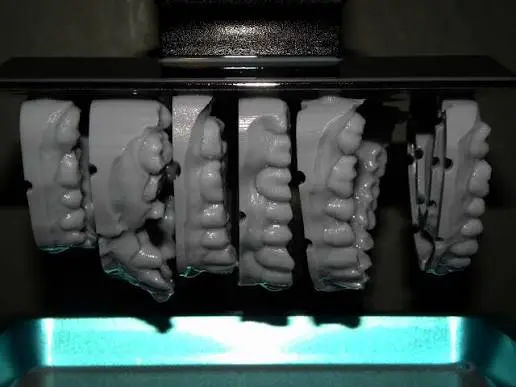
You scan the case, design the model, print it, and then something is not right. The crown seats too tightly. The aligner does not sit down fully. The die will not fit its base. The bite does not close the way it should.
Poor fit is one of the most frustrating problems in digital dentistry, partly because it can start at so many points in the workflow. The scanner, the software, the printer, the resin, the washing, the curing, and even the storage can each add a small error. Those small errors can add up to a model that does not fit.
The good news is that poor fit is rarely a mystery once you know where to look. In this guide, you will learn what causes poor fit in 3D printed dental models, how to find the source of the problem, and how to fix and prevent it, in plain and simple language.
This article is general information for dental labs and clinics. It is not clinical advice. Always follow the instructions from your printer, resin, and software manufacturers, and the standards that apply to your practice.
What Does “Poor Fit” Actually Mean?
Before finding the cause, it helps to describe the problem clearly. Poor fit can show up in different ways.
- Too tight: A restoration or appliance will not seat fully, or needs force to seat.
- Too loose: There is a gap, rocking, or movement.
- Open margins: A visible gap at the edge of a restoration.
- Uneven fit: Tight in one area and loose in another.
- Bite problems: Contacts are too high, too low, or in the wrong place.
- Model parts do not fit together: Dies, pins, or bases do not seat properly.
- Appliance or aligner does not seat: The device does not adapt to the teeth.
The pattern of the problem is a major clue. A model that is slightly too large everywhere points to a different cause than a model that is warped or twisted. Keep notes on what exactly is wrong.
The Big Picture: Where Error Come From
A 3D printed dental model goes through a chain of steps. Poor fit can enter at any link.
- Capturing the teeth: an intraoral scan, or a scan of an impression or stone model
- Processing and design: software settings, mesh quality, model design
- Printing: the printer, the resin, the settings, the orientation
- Post-processing: washing, drying, support removal, and curing
- Storage and handling: how the model is kept before use
- The restoration or appliance itself: how it is made and checked
If you want a broader comparison of printed and traditional models, read our article on dental model accuracy: 3D printing vs. traditional impressions. Below, we go through each link in the chain.
Cause 1: Problems with the Scan
A printed model can only be as accurate as the digital file behind it. If the scan is off, the print will be off too, even if everything else is perfect.
Common Scan Problems
- Stitching errors. Intraoral scanners capture many small images and stitch them together. Small errors can add up across a full arch, causing slight distortion.
- Poor scanning technique. Rushing, moving too fast, or scanning in an unusual path can create gaps or distortions.
- Moisture, saliva, or blood. Fluids can confuse the scanner and cause missing or wrong data.
- Hard-to-reach areas. Deep margins, tight spaces, and distal areas can be captured poorly.
- Scanner calibration. A scanner that is out of calibration can introduce errors.
- Scanner tip or lens problems. A dirty or damaged scanner tip can reduce accuracy.
- Movement during the scan. Patient or soft tissue movement can distort the data.
- Scanning an impression or stone model. If you scan a physical model, any distortion in that model carries into the digital file.
How to Reduce Scan Problems
- Follow the scanner manufacturer’s recommended technique and scanning path.
- Keep the area dry and clear.
- Calibrate the scanner regularly.
- Keep the tip and lens clean and in good condition.
- Check the scan carefully for gaps, noise, and distortion before sending it.
- Rescan areas that look poor.
Cause 2: Software and Design Settings
The digital file passes through software before it is printed. Small choices here affect the final fit.
- Mesh quality. Very low-resolution meshes lose fine detail, and overly processed meshes can smooth away important shapes.
- File export settings. Wrong units, scaling, or file conversion can change dimensions.
- Model base design. A model that is too thin may warp. A model with poor support geometry may distort.
- Die spacer or cement gap settings. In crown and bridge design, the gap settings affect how a restoration fits on the die.
- Margin line errors. If the margin is marked incorrectly, the restoration will not fit well.
- Hollowing and wall thickness. Models that are hollowed too much can be weak and flex.
- Pin and die system design. Poorly designed pins or sockets can cause die fit problems.
- Model orientation in the file. The way the model is placed in the printing software can affect accuracy.
How to Reduce Design Problems
- Use software settings recommended for your case type.
- Keep consistent offsets and gap settings, and test them on real cases.
- Check the model and margins visually before printing.
- Use a good base design with enough thickness.
- Avoid unnecessary processing steps that can change geometry.
Cause 3: Printer Calibration and Condition
The printer must create the model at the right size. If the printer is not calibrated, every print will be slightly wrong.
Common Printer Problems
- Incorrect XY or Z scaling. The printer may make parts slightly larger or smaller than the design.
- Uneven exposure across the screen. Some areas may cure more than others, causing uneven dimensions.
- Unlevel build plate. A tilted plate can create height and fit problems.
- Worn or damaged release film. A cloudy or scratched film can cause uneven layers and small defects. Our guides on NFEP film and how to remove cured resin from an FEP film explain how to look after it.
- Aging LCD screen. A screen with dead pixels, dark patches, or uneven brightness can reduce accuracy. See our guide on when to replace a resin printer’s LCD screen.
- Dirty vat or resin with cured particles. Floating bits can cause defects.
- Limited resolution. A printer with large pixels may not capture fine margins and detail. Our guides on how to compare resin 3D printers by build volume and XY resolution and 8K vs 16K resin 3D printers explain how resolution affects detail.
- Mechanical wear. A loose Z-axis, worn parts, or wobbling can affect layer accuracy.
How to Reduce Printer Problems
- Calibrate the printer regularly with a reference model and measure the result.
- Level the build plate carefully and recheck it often.
- Keep the vat, film, and screen clean and in good condition.
- Replace worn parts before they affect accuracy.
- Use a printer suited to the level of detail your cases need.
Cause 4: Resin Shrinkage and Resin Choice
All resins shrink slightly as they cure, and this is one of the biggest causes of poor fit. Different resins shrink by different amounts, and the same resin can shrink differently depending on how you print and cure it.
Why Shrinkage Matters
A small amount of shrinkage can make a model slightly smaller than the design, and not always evenly. This can cause tight fit, distortion, or warping, especially across a full arch.
Common Resin Problems
- Using a resin that is not made for dental models. General-purpose resins may shrink or warp more.
- Different resin batches. Small differences between batches can change behavior.
- Old or poorly stored resin. Resin that is aged, separated, or exposed to light can behave unpredictably.
- Cold or poorly mixed resin. This changes viscosity and curing.
- Mixing resin brands or types. This creates an untested material. Our guide on whether you can mix different brands of 3D printer resin explains the risks.
- Water-washable vs. standard resin differences. Some resins absorb moisture or change dimensions differently after washing. Our guide on the difference between water-washable resin and standard resin explains these differences.
How to Reduce Resin Problems
- Use dental resins designed for the type of model you are printing, and follow the manufacturer’s instructions exactly.
- Mix the resin well and keep it at a steady temperature.
- Store resin in sealed bottles away from light and heat.
- Avoid mixing different resins.
- Track resin batches and note any changes in results.
Cause 5: Print Settings
The settings you choose directly affect dimensions.
- Exposure time too long. Over-exposure makes features grow slightly, bleeds light into small gaps, and can make models too large or fill in details.
- Exposure time too short. Under-exposure leaves layers weak, soft, or incompletely cured, which can lead to warping later.
- Layer height. Thicker layers reduce detail on margins and curved surfaces.
- Lift speed and distance. Aggressive settings can stress the model during printing.
- Bottom layer settings. Poor bottom layers can affect how well the model sticks and how flat it is.
- Settings changed without testing. Even small changes can shift dimensions.
How to Reduce Setting Problems
- Start with the resin manufacturer’s recommended profile.
- Run exposure calibration tests when you change resin or hardware.
- Change one setting at a time and measure the effect.
- Keep a record of the settings that give accurate results.
Cause 6: Orientation, Supports, and Model Position
How the model sits on the build plate has a big effect on accuracy, especially for full arches.
- Flat vs. angled orientation. Different orientations produce different distortion patterns. Some orientations may flex or warp more across the arch.
- Supports in critical areas. Supports on margins, occlusal surfaces, or contact points leave marks and can distort surfaces.
- Too few or weak supports. The model may shift or flex during printing.
- Too many supports. They can pull on the model and leave extra marks.
- Model placement on the plate. Models near the edge of the plate may receive slightly different light, which can affect accuracy.
- Large flat surfaces facing the film. These increase peel forces and can cause stress.
How to Reduce Orientation Problems
- Follow the resin manufacturer’s recommended orientation for dental models, and test alternatives on your own cases.
- Place supports on non-critical surfaces.
- Use enough supports to hold the model firmly without over-supporting it.
- Print important models near the center of the plate when possible.
- Keep a consistent orientation so results are repeatable.
Our guide on how to reduce support marks on resin 3D printed jewelry shares support techniques that also help with fine dental surfaces.
Cause 7: Washing and Drying Mistakes
Washing removes uncured resin, but it can also affect the model.
- Washing too long. Prolonged soaking can cause some resins to swell, soften, or change dimensions.
- Using the wrong cleaning liquid. The wrong solvent can damage or weaken the surface.
- Dirty wash liquid. Contaminated IPA or water leaves a sticky film that can build up on margins and fine areas.
- Insufficient washing. Leftover resin in crevices cures into the model and changes dimensions.
- Not drying fully. Remaining liquid can cause uneven curing and surface problems.
How to Reduce Washing Problems
- Follow the manufacturer’s recommended wash time and liquid.
- Use a two-stage wash with a final clean rinse.
- Replace dirty cleaning liquid regularly.
- Dry thoroughly before curing.
- Keep wash times consistent between batches.
Cause 8: Curing and Post-Processing Errors
Curing hardens the model, but it can also change its shape.
- Under-curing. The model remains soft or slightly flexible, and may keep changing shape.
- Over-curing. Too much UV or heat can cause shrinkage, brittleness, warping, and color change.
- Heat build-up in the curing unit. High temperatures can soften and distort models.
- Uneven curing. Parts of the model that receive less light cure differently.
- Curing with supports still attached, where recommended, versus removing them first. Follow the resin manufacturer’s guidance.
- Removing supports roughly. Pulling or twisting can damage or distort the model.
- Cutting or trimming too aggressively. This can alter critical areas.
How to Reduce Curing Problems
- Use the cure time, light, and temperature recommended for your resin.
- Avoid leaving models in the curing unit longer than needed.
- Use a curing unit with even light and temperature control.
- Remove supports carefully, cutting rather than pulling.
- Handle models gently until fully cured and cooled.
Cause 9: Storage, Handling, and Time
A model that fits when it comes out of the printer can lose its fit later.
- Warping over time. Some resins slowly change shape, especially if they were under-cured or stressed.
- Heat exposure. Leaving models in hot places, such as a car, window, or near a heater, can warp them.
- Direct sunlight. UV light can continue to cure or discolor models and can cause distortion.
- Pressure and weight. Stacking models or storing them under pressure can deform thin areas.
- Humidity and moisture. Some resins absorb moisture, which can change dimensions.
- Long storage times. Very old models may not match their original digital files.
How to Reduce Storage Problems
- Store models flat or supported, away from heat and sunlight.
- Keep them in a dry, stable environment.
- Avoid stacking or crushing.
- Use models soon after printing for critical work.
- Reprint from the saved file if a model has been stored for a long time.
Cause 10: Issues Outside the Model Itself
Sometimes the printed model is accurate, but the fit problem comes from something else.
- The restoration or appliance is made inaccurately. A crown or aligner can be off even if the model is correct.
- Different materials and processes. Milling, printing, or pressing the final restoration can each add their own error.
- Clinical factors. Soft tissue changes, movement of teeth, and differences between the scan day and the fitting day can affect fit.
- Poor communication. Missing information about margins, undercuts, or the case can lead to wrong designs.
- Wrong model type used. A study model is not suitable for work needing high accuracy.
Always check the whole workflow, not just the printed model, before deciding where the problem lies.
How to Diagnose the Cause of Poor Fit: Step by Step
When a model does not fit, do not guess. Work through the steps in order.
Step 1: Describe the Problem Precisely
Is the fit too tight, too loose, uneven, or twisted? Is it everywhere, or in one area? Take notes and photos.
Step 2: Compare the Model with the Digital File
Measure key dimensions on the model with calipers and compare them with the design. Or scan the printed model and overlay it on the original file using inspection software. This shows whether the model is too large, too small, or distorted.
Step 3: Check the Pattern
- Uniformly too small or too large: suggests scaling, shrinkage, or exposure problems.
- Warped or twisted: suggests orientation, supports, curing, heat, or storage problems.
- Errors in one area only: suggests a scan problem, support marks, or design error.
- Fine detail missing or filled in: suggests exposure or resolution problems.
Step 4: Print a Reference Model
Print a test model with known dimensions using your normal settings. Measure it carefully. If the reference model is off, the problem is in the printing and post-processing. If it is accurate, the problem is more likely in the scan or design.
Step 5: Change One Thing at a Time
Adjust a single factor, such as exposure, orientation, or cure time, and test again. Changing many things at once hides the real cause.
Step 6: Check Equipment Condition
Inspect the build plate, film, vat, and screen. Look at the printer’s mechanical condition. Check the scanner tip and calibration.
Step 7: Record and Standardize
Write down what worked. Create a simple standard process so every case follows the same steps.
Quick Troubleshooting Table
| Symptom | Possible Causes | What to Try |
|---|---|---|
| Model slightly too large | Over-exposure, light bleed, scaling error | Reduce exposure, calibrate, check scale |
| Model slightly too small | Resin shrinkage, over-curing, scaling | Check cure time, calibrate, adjust compensation if your system allows |
| Warped or twisted arch | Orientation, weak supports, heat, over-curing, storage | Change orientation, add supports, control heat, store flat |
| Margins unclear or filled | Over-exposure, dirty resin, low resolution, thick layers | Adjust exposure, filter resin, use finer layers |
| Rough or sticky surface | Poor washing, under-curing, dirty IPA | Use clean wash liquid, follow cure instructions |
| Dies do not seat | Pin design, shrinkage, support marks | Check pin design, tolerances, and supports |
| Fit changes over days | Under-curing, heat, moisture, storage | Cure properly, store correctly, reprint if needed |
| Errors in one area only | Scan error, support marks | Rescan, move supports |
Prevention: A Simple Quality Routine
A few habits prevent most fit problems.
Daily or per print
- Check the vat, film, and plate before printing
- Mix and warm the resin
- Use the same, tested settings
- Follow the same wash and cure routine
Weekly or regularly
- Print and measure a reference model
- Check the release film for scratches and cloudiness
- Inspect the screen for dead pixels or uneven areas
- Filter the resin
Whenever something changes
- Re-test after changing resin, batch, orientation, or settings
- Re-test after replacing the film, screen, or other parts
- Re-calibrate the scanner as recommended
Always
- Record settings and results
- Keep resin stored properly
- Use materials and workflows approved for your work
- Check the fit of real cases
Safety Reminder
Resin printing needs safe handling, especially in a clinic or lab.
- Wear nitrile gloves and eye protection.
- Work in a well-ventilated space.
- Store resin properly and dispose of waste correctly.
- Follow infection control rules for impressions, models, and equipment.
Our guide on resin 3D printing safety covers ventilation, gloves, storage, and waste disposal in detail.
Common Mistakes to Avoid
- Blaming the printer when the scan is the real problem
- Using a non-dental resin for dental models
- Changing several settings at once
- Skipping printer calibration
- Ignoring a worn film, dirty vat, or aging screen
- Over-washing or over-curing models
- Using dirty wash liquid
- Storing models in hot or sunny places
- Mixing resins
- Not measuring the printed result
- Failing to document settings
FAQ
What is the most common cause of poor fit in 3D printed dental models?
There is no single cause. The most common culprits are scan errors, resin shrinkage, uncalibrated printers, over- or under-exposure, poor orientation, and incorrect washing or curing. Finding the pattern of the problem usually points to the cause.
Why does my printed model not match the digital file?
Common reasons include printer scaling errors, exposure that is too long, resin shrinkage, curing distortion, and warping from storage or heat. Measuring a reference model helps you find out which one it is.
Can the scanner cause a poor-fitting model?
Yes. Stitching errors, moisture, poor technique, and an uncalibrated scanner can all create a digital model that does not match the teeth, and the printer will faithfully reproduce that error.
Does print orientation affect fit?
Yes. The orientation affects how the model flexes, how supports pull on it, and how it shrinks. Follow the resin manufacturer’s guidance and test on your own cases.
Can washing too long cause a poor fit?
It can. Some resins swell or soften when soaked for too long, which can change dimensions or weaken the surface.
Can over-curing ruin a dental model?
Yes. Over-curing can cause shrinkage, brittleness, and warping. Use the cure time and temperature recommended for your resin.
Do models change shape after printing?
Some can, especially if they were under-cured, exposed to heat, or stored under pressure. Store models properly and reprint from the file if needed.
How do I check if my printer is accurate?
Print a reference model with known dimensions using your normal settings, then measure it with calipers or scan it and compare it with the file.
Can a worn film or screen cause poor fit?
Yes. A damaged film or aging screen can cause uneven curing and detail loss, which affects dimensions and surface quality.
Should I use general-purpose resin for dental models?
It is better to use resins made and recommended for dental models, with the manufacturer’s settings and instructions.
Conclusion
Poor fit in 3D printed dental models almost never has a single, mysterious cause. It usually comes from small errors that add up along the workflow: the scan, the design, the printer, the resin, the settings, the orientation, the washing, the curing, and the storage.
The best approach is to describe the problem precisely, check the pattern, print and measure a reference model, and change one thing at a time. Keep your printer well maintained, use dental resins as directed, follow consistent washing and curing steps, and record what works. With a clear process, most fit problems can be traced and fixed, and your models will become more accurate and more repeatable.
If you are setting up or improving a digital dental workflow, explore our range of resin 3D printers, dental resins, and accessories at MCast 3D. If you are not sure which printer or resin suits your lab or clinic, contact our team and we will help you choose a setup that fits your needs.